

Table of Contents
Working with the Introductory Materials
This section contains instructor preparation information.
The included default text needs very little modification.
About the Introductory Materials
The Introductory Materials appear only in a Facilitator Guide.
They require minimal work on your part. If you create a custom Collection, these materials can be customized or even excluded.
The Introductory Materials load automatically, as the first part of any new Facilitator Guide, to provide your instructors with helpful information as they prepare to deliver the training program.
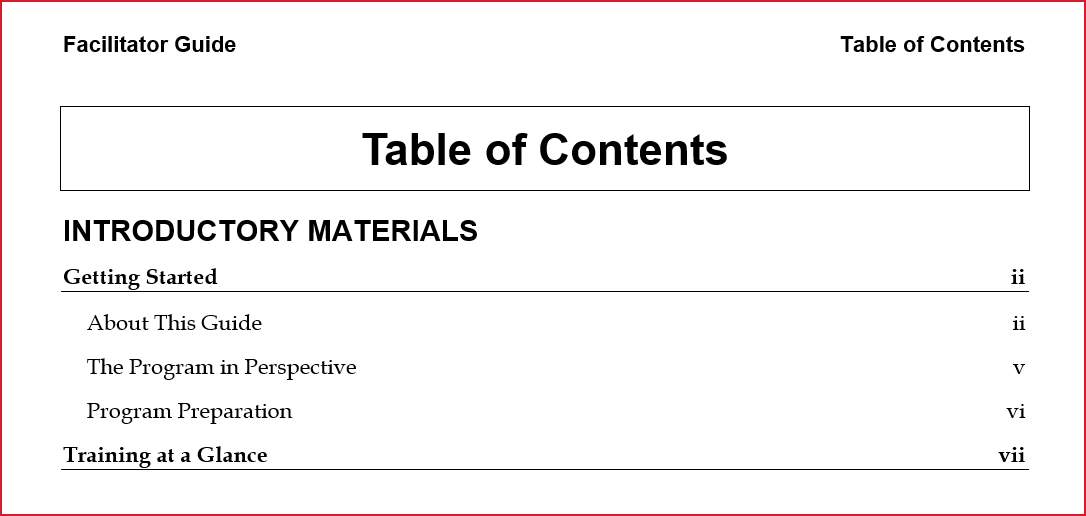
There are two parts to the Introductory Materials:
-
Getting Started
-
About This Guide
-
The Program in Perspective
-
Program Preparation
-
-
Training at a Glance
Take a closer look, below, to learn how to work with the parts in this section of your guidebook.
Select an option below:
- About This Guide
- The Program in Perspective
- Program Preparation
- Training at a Glance
About This Guide
This introduction in the Getting Started section includes three pages of information.
No matter which Collection you use, these pages always set up the same way.
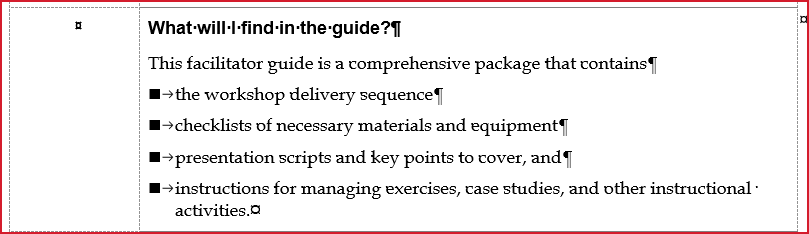
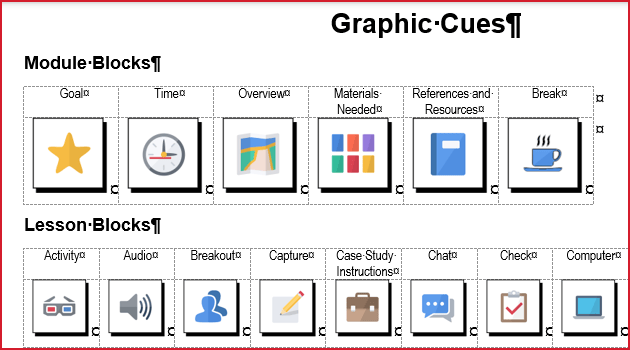
The first two pages contain general information that applies to all LeaderGuide Pro Facilitator Guides, including the guide's purpose, what it contains, how it is organized and how the text is laid out. It is written in such a way that you do not need to edit it. The third page shows the icons available for use, and their intended meaning.
!! The example pages shown below have with Word's non-printing formatting marks on, because this is the way you will work. When these pages are printed or PDF-ed the formatting marks disappear. !!
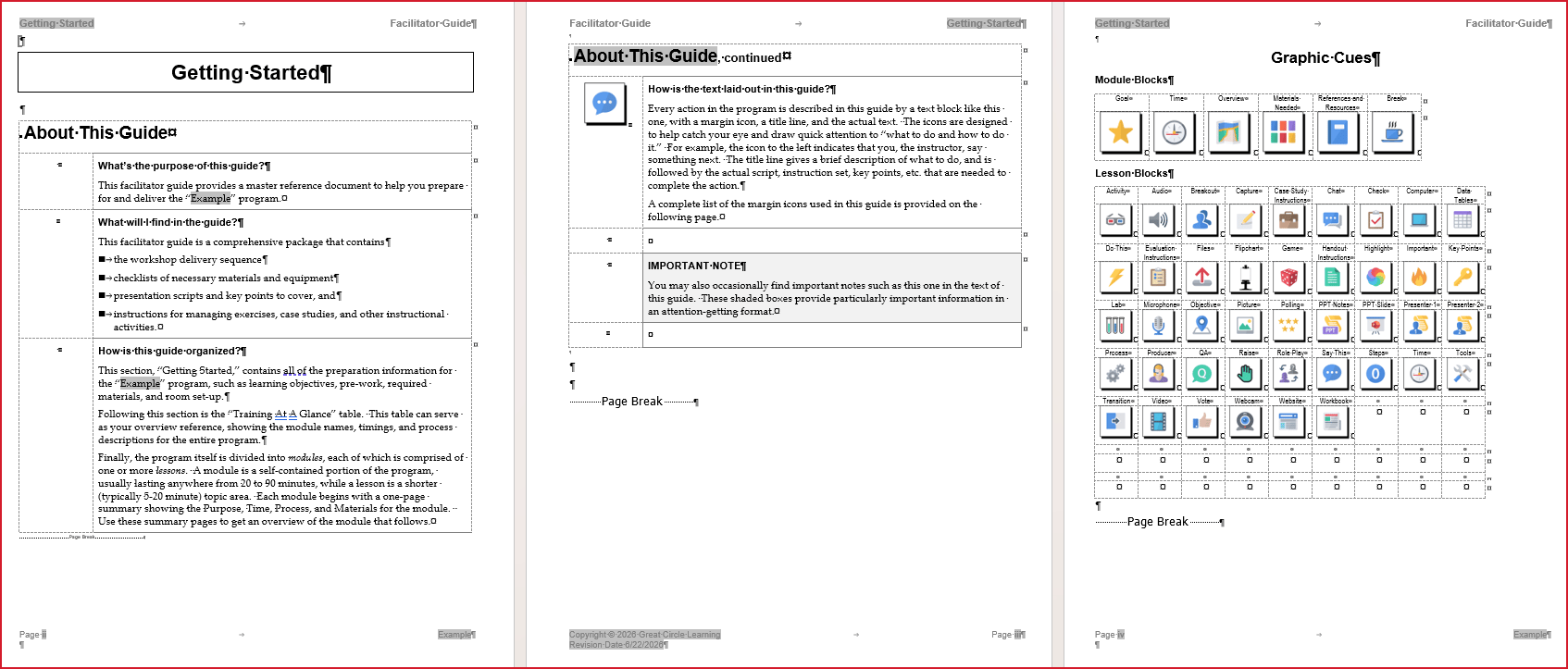
About This Guide Example
There are three elements you can edit/customize if desired.
Course Name Text Graphic Cues
Learn more below ...
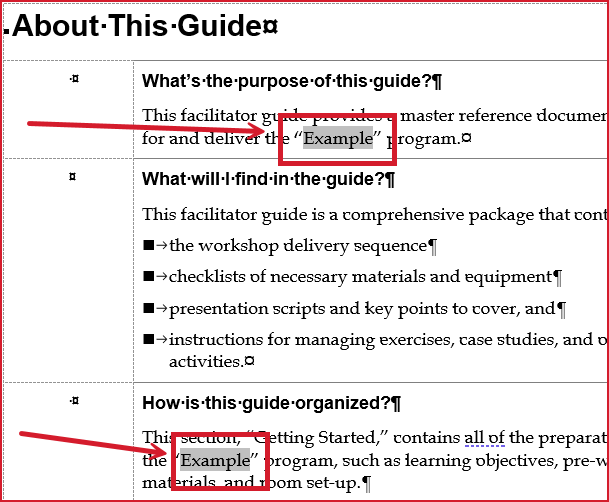
Course Name Field
The two grey fields on this page pick up and display the Program/Course Name on your Cover page.
To edit the Program/Course Name:
-
Go to the Cover page
-
Edit the Course Name
-
Click Update All Fields on the LGPro ribbon.
NOTE: The grey fields are non-printing. They will not show as grey when you print or PDF the document.
Text Block: Edit for One-Time Use
The text on the first two pages is set up in LGPro Content Blocks, which are two-cell table rows.
-
Leave the first cell empty.
-
Edit the content in the second cell.
To edit the text on these two pages for one-time use:
-
Manually edit the text.
-
Do NOT manually change the styles.
-
To change the Styles, use the buttons in the Text/Table Formatting group on the LGPro ribbon.
To add a new Content Block:
-
Place your cursor in the block above/before the spot where you want to add a Block.
-
Click Empty in the Content Blocks group on the LGPro ribbon.
To delete a Content Block:
-
Click Delete Table Row in the Text/Table Formatting group.
Text Block: Customize for Ongoing Use
To customize the text on these first two pages for on-going use:
-
Click Parts > Manage Collections
-
Select the Collection to work with, or create a new custom Collection
-
Select Guidebook Parts > Getting Started > Open
-
Use the customization wizard to make your changes.
-
Do NOT remove the grey Program Name field.
-
Do not type in the first cell of the Content Blocks.
-
-
When done, click Close. And then click Close again.
-
Select your custom Collection when you start new facilitator guides.
Graphic Cues page
This page always displays all of the Content Block icons available for use in the Collection you have chosen to use.
Once your Facilitator Guide is built out:
-
You can edit this page to show only the icons actually in use in your Facilitator Guide.
To edit:
-
Click Special > Graphic Cues - Display only those in the document
!! You can also customize this page your own graphic cues and labels. Contact us for help with this. !!
Page Break
Do NOT delete. The Graphic Cues page is meant to be one page.
If you turn Word's formatting marks off you will not see the page break and could easily delete it by mistake.
Training at a Glance
Every Facilitator includes this page.
It provides Facilitators with a high-level overview of the training program flow, timing and purpose.
LeaderGuide Pro generates this page for you. To update it as you add content to your Module Overview pages and as you add new Modules, click TAG in the Controls group on the LGPro ribbon.
The Training at a Glance draws information from the Module Overview pages in your guidebook.
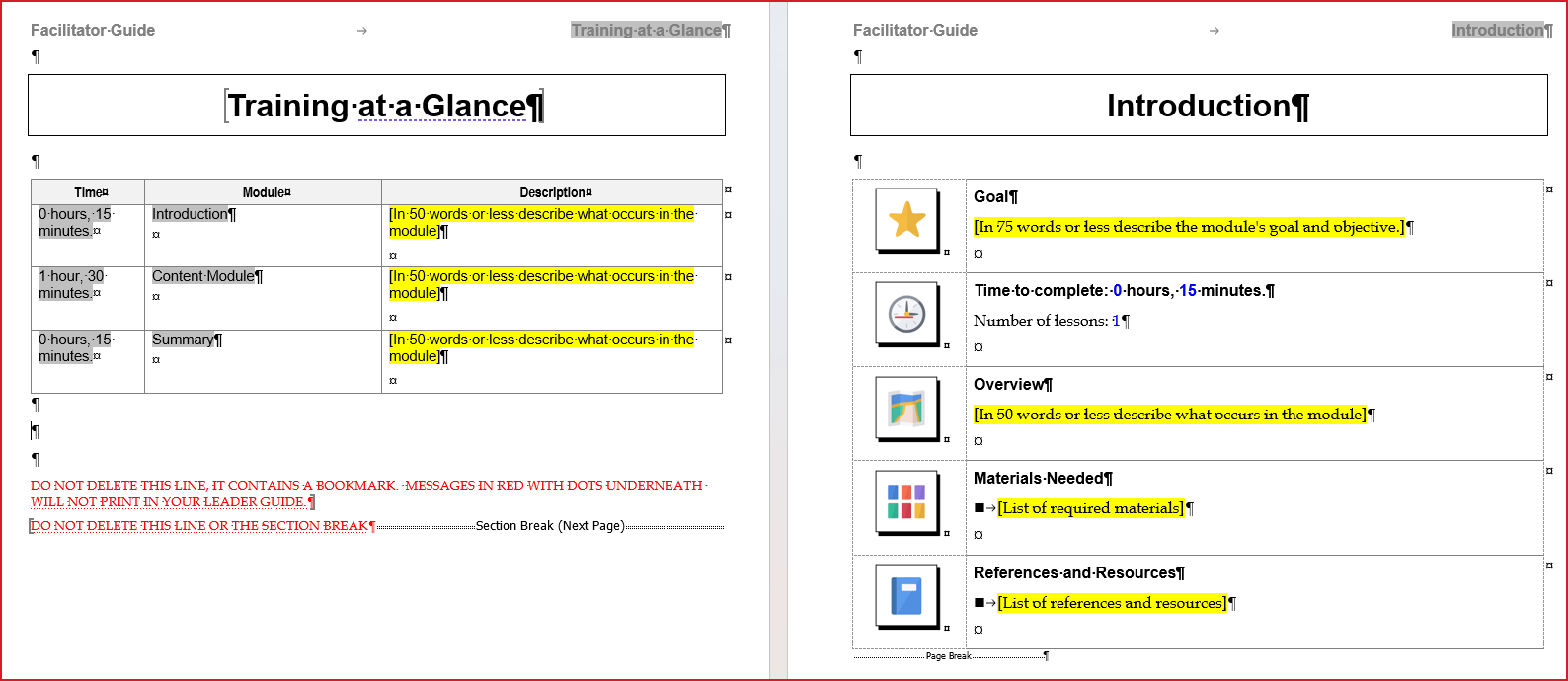
Training at a Glance & Module Overview page examples
You can navigate to each Module shown using CTRL+Click.
Do NOT type on this page.
Do NOT delete the red text or the Section Break.
Do NOT manually delete this page.
If you do not want to include the Training at a Glance in your Facilitator Guide:
- Click Exclude TAG in the Start a New Guidebook wizard as you start your new Facilitator Guide.
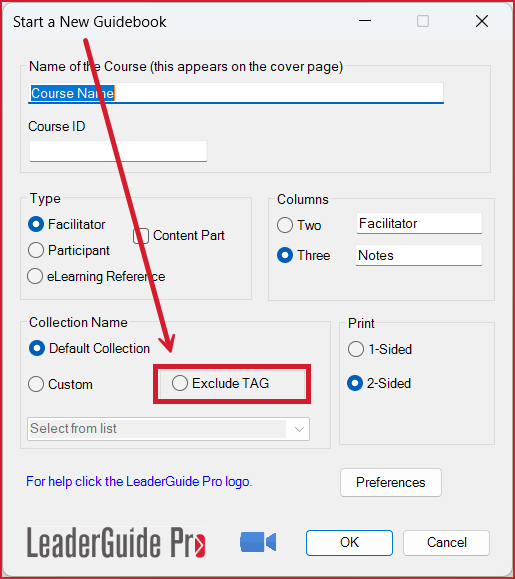
Exclude TAG option in the Start a New Guidebook wizard
Program Preparation
Every Facilitator Guide includes a this page.
Facilitators will use this page to help them prepare for course delivery.
You will use the placeholders on this page to enter both general and course-specific preparation information for the facilitator. This page is designed to flow over multiple pages as needed. You can add or edit the Content Block placeholders as needed. You can also customize this page, which is helpful if there are standards requirements for course delivery that you always provide.
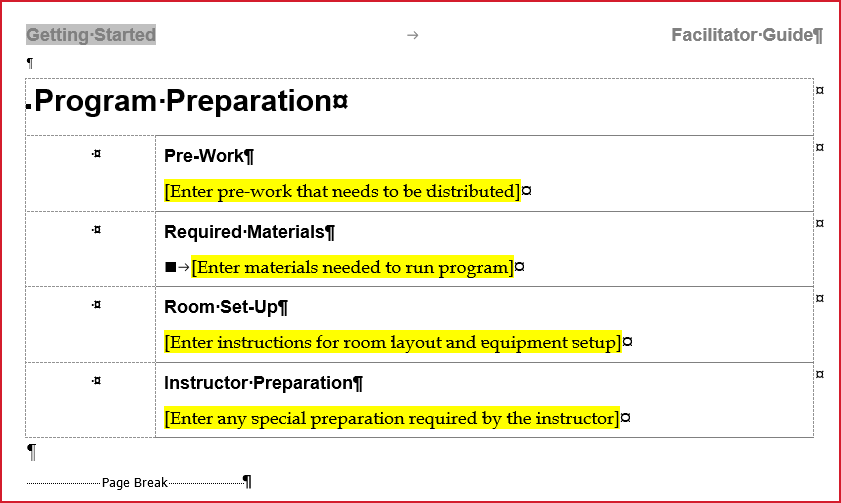
Facilitator Guide Program Preparation Page Example
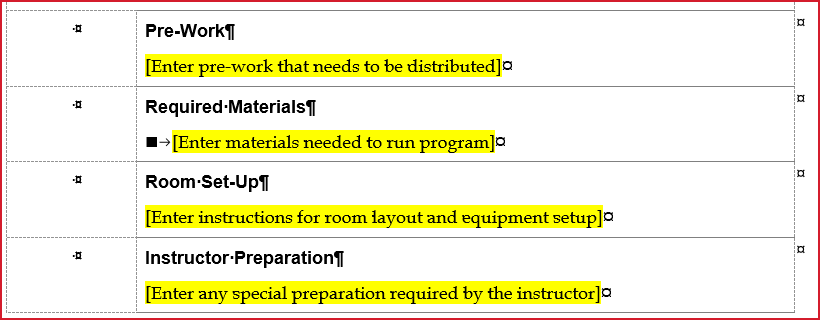
Every Program Preparation page contains these elements.
Pre-Work Required Materials Room Set-up Instructor Preparation
Learn more below ...
Working with Content Blocks
The placeholders on this page are set up as LeaderGuide Pro Content Blocks.
Content Blocks are two or three cell table rows. On this page, two cell rows are used, and the first cell stays empty.
In the second cell, the first line of text is formatted as LGP Title, which is a bold headline font.
Once you hit enter, the font formatting changes to LGP Text, which is a regular font.
Add bullets or numbering, and change the LGP Title and LGP Text fonts using the buttons in the Text/Table Formatting group on the LGPro ribbon.
To add more Content Blocks to this page, click Empty in the Content Blocks group.
To remove a Content Block, click Delete Table Row in the Text/Table Formatting group.
As you add content into the Blocks and the page fills up, it will flow over to the next page. If a Content Block moves to the top of the next page leaving room on the prior page, click Flow Table in the Text/Table Formatting group to allow the Block to flow over multiple pages.
The extra characters you are seeing are Word's non-printing formatting marks; in this case including end of cell and end of row symbols. These extra characters go away when you print or PDF the document.
Pre-work Block
To edit the phrase Pre-Work simply type over it. It is formatted as LGP Title, which is a bold, headline style.
To enter instructions for how the facilitator is to handle/distribute/collect pre-work, type over the yellow highlighted text. The yellow highlighting will go away. It is formatted as LGP Text, which is a regular text style.
NOTE: You do not enter the actual pre-work here. You will do that either in the first Module in the Modules section, or in the Participant Guide, or in an Appendix to your Facilitator Guide.
To format the text you are entering, use the buttons in the Text/Table Formatting group on the LGPro ribbon.
Do NOT manually format the text. If you want to use different fonts or styles, either:
-
Use a different Collection.
-
Or, customize the Style Guide associated with the Collection you are using. Contact us for help with this.
If you do not have any Pre-Work you can repurpose this block by giving it a different headline and then entering the associated content.
Required Materials Block
To edit the phrase Required Materials simply type over it. It is formatted as LGP Title, which is a bold, headline style.
To enter your required materials, type over the yellow highlighted text. The yellow highlighting will go away. It is formatted as LGP Bullet, which is a first level bullet style.
To add sub-bullets or otherwise format the text you are entering, use the buttons in the Text/Table Formatting group on the LGPro ribbon.
Do NOT use Word's bullets.
Do NOT manually format the text. If you want to use different fonts or styles, either:
-
Use a different Collection.
-
Or, customize the Style Guide associated with the Collection you are using. Contact us for help with this.
If you do not have any Required Materials you can repurpose this block by giving it a different headline and then entering the associated content.
Room Set-Up Block
To edit the phrase Room Set-Up simply type over it. It is formatted as LGP Title, which is a bold, headline style.
To add an image of a room layout:
-
Place your cursor by a free paragraph mark and click Insert Pictures and Text Objects into Existing Blocks in the Insert group on the LGPro ribbon.
-
Follow the prompts in the Insert wizard.
To enter your room set-up information, type over the yellow highlighted text. The yellow highlighting will go away. It is formatted as LGP Text, which is a regular text style.
To otherwise format the text you are entering, use the buttons in the Text/Table Formatting group on the LGPro ribbon.
Do NOT manually format the text. If you want to use different fonts or styles, either:
-
Use a different Collection.
-
Or, customize the Style Guide associated with the Collection you are using. Contact us for help with this.
If you do not have any Room Set-up requirements you can repurpose this block by giving it a different headline and then entering the associated content.
Instructor Preparation Block
To edit the phrase Instructor Preparation simply type over it. It is formatted as LGP Title, which is a bold, headline style.
To enter your instructor preparation information, type over the yellow highlighted text. The yellow highlighting will go away. It is formatted as LGP Text, which is a regular text style.
To otherwise format the text you are entering, use the buttons in the Text/Table Formatting group on the LGPro ribbon.
Do NOT manually format the text. If you want to use different fonts or styles, either:
-
Use a different Collection.
-
Or, customize the Style Guide associated with the Collection you are using. Contact us for help with this.
If you have standard instructor preparation information that you always include for facilitators, you can customize this page. Click Parts > Manage Collections. Select the Collection you are using. Select Guidebook Parts > Program Preparation > Open. Make your edits. Click Word's Save button. Click Close in the Parts wizard. Click Close again.
If you do not have any instructor preparation information you can repurpose this block by giving it a different headline and then entering the associated content.
Page Break
Depending on how much content you add to the Program Preparation page, it may naturally flow over multiple pages. This is okay. LeaderGuide Pro manages this for you.
But, whether this information is one page or many pages long, it must end with the Page Break that LeaderGuide Pro includes.
Do NOT delete the page break.
The Program in Perspective
Every Facilitator Guide contains this page.
This page provides course-specific information for the facilitator.
You will use the placeholders and prompts to add course-specific information for the Instructor. And if you Extract a Participant Guide from this Facilitator Guide, the Program Context and Learning Objectives will be copied into the Participant book.
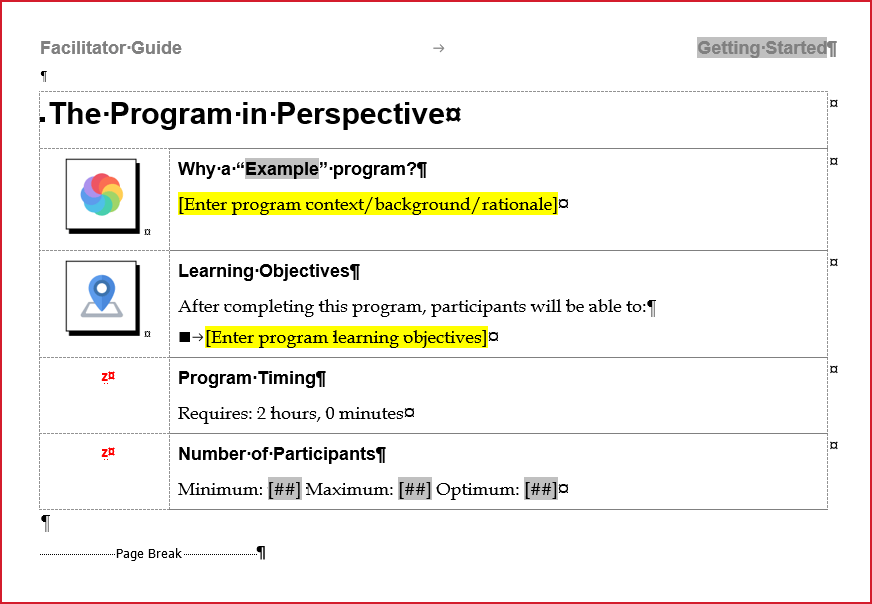
The Program in Perspective Page Example
Every Program in Perspective page contains these four placeholders.
Program Context Learning Objectives Program Timing Number of Participants
Learn more below ...
Program Context
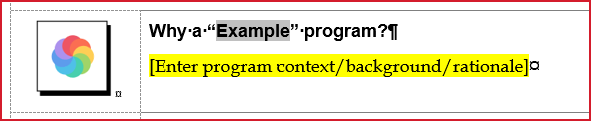
The grey spot in the first line is a field that displays the Program Name on your Cover page. To change the name, edit it on the Cover page and then click Update All Fields. ! The grey is non-printing and will not show when you print or PDF your guidebook. !
The yellow highlighted text is a prompt for you to type over. Orient the facilitator with a brief statement about why this course is important. ! The yellow will go away as you start typing. !
If you use the Extract function, the information you add here will be extracted into a Participant Guide, as a starting point introduction the class for participants. The idea is that you will edit it as appropriate.
Learning Objectives
To change the phrase Learning Objectives simply type over it.
-
To customize it for ongoing use, click Parts > Manage Collections. Select your Collection. Choose Guidebook Parts > Program Perspective > Open. Make your edit and click Close. Then click Close again.
Type over the yellow highlighted text with the first learning objective for this course. The yellow will go away as you start typing.
After typing in the first learning objective:
-
Hit Enter on your keyboard to add the next bullet point and type in the next learning objective.
To change the bullets to numbers, or to just regular text:
-
Highlight the bulleted text and use the buttons in the Text/Table Formatting group on the LGPro ribbon.
If you use the Extract function, the information you add here will be extracted into your Participant Guide.
Program Timing
LeaderGuide Pro will fill in, and update, the time required to deliver the entire training program based on:
-
The Lesson times you enter into the Lesson Time Blocks on your Lesson pages. The Lesson Times are added up and placed on the Module overview pages as the Module times. If you choose not to use the Lesson Time Blocks, then the Module times you enter into the Module Time Blocks will be used.
-
This information is updated every time you click Update All Fields.
The red Z is a non-printing character that LeaderGuide Pro adds to indicate an "empty Content Block" - meaning a Content Block that does not have an icon in cell one. Do not delete it. The red Z will not show when you print or PDF your guidebook.
Number of Participants
Type into the grey fields the minimum, maximum and optimum number of participants this training program is designed for.
The red Z is a non-printing character that LeaderGuide Pro adds to indicate an "empty Content Block" - meaning a Content Block that does not have an icon in cell one. Do not delete it.
Page Break
DO NOT DELETE.
If you turn Word's formatting marks off, you will not see the page break and it will be easy to accidentally delete it.