
vid-temp-thumb-1

About Working with Slides

Good to Know as you Start a new Facilitator Guide


If you have PowerPoint slides to include in your new Facilitator Guide ...

You can import them as you set up your new facilitator guide. For the best results you will need to:

  • Be ready to distribute your slides across the Lessons you will be adding as you set up your new Facilitator Guide.

  • Decide if you would like LeaderGuide Pro to copy the slide text into Content Blocks so that you can use what's written on the slides to help build out your instructions.

  • Decide if you would like to import the slide notes into Content Blocks so that you can work with them to build out your instructions.

Best Practice

Open and minimize the PowerPoint file you will be importing before you start the build of your new facilitator guide.

Close any other open PowerPoint files.

About the Lesson Page Layout

Slide images are imported into PPT Slide Content Blocks ...

Content Blocks are table rows with two or three cells. When setting up a new Facilitator Guide you have the option to choose either a 2 column lesson page layout or a 3 column layout.

  • 2 column = Content Blocks with two cells

  • 3 column = Content Blocks with three cells

We recommend the 3 column layout for Facilitator Guides.

Here is an example of a 3 column PPT Slide (content) Block - with Word's nonprinting formatting marks showing.
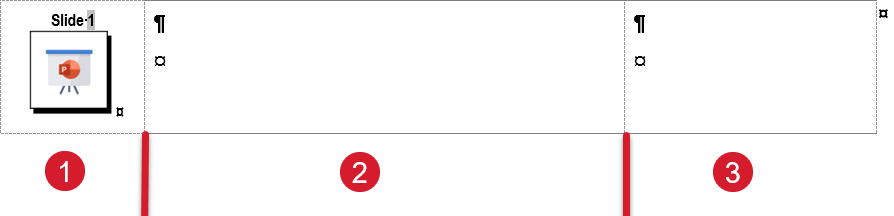
Slide Block example

You can import your slide images into any of the three columns.

  • Whichever column you choose, all of the slides you import will be placed into that column.

Here is an example of a slide imported into column 2 of a 3 column facilitator guide - with Word's nonprinting formatting marks turned off.
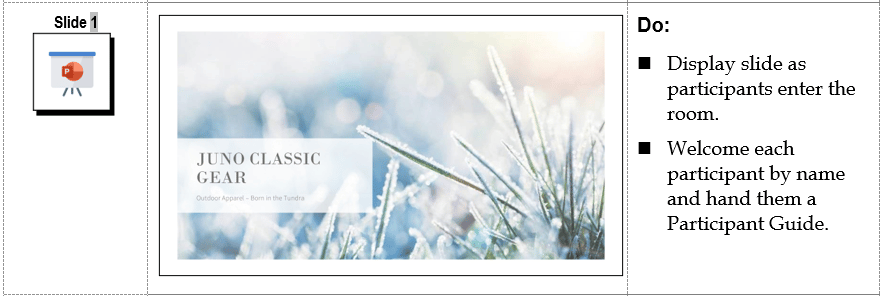
Slide Block example

Notice that in both examples column 1 includes:
  • an icon 

  • a slide number 

This is because LeaderGuide Pro Content Blocks:

  • Always start with an icon in column 1, to visually cue the facilitator

    • Unless you choose to place slides in column 1 - in that case the slide image replaces the PPT icon

  • And PPT Blocks always include a slide number in column 1, to help you and the software keep track of the imported slides

    • And LeaderGuide Pro keeps track of and updates the slide numbering for you - so that you never have to touch the numbers

How to Update/Change Numbers, Icons, Slides

How to Change Slide Numbers

To update slide numbering:
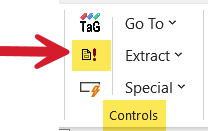
  • Click Update All Fields

  • In the Controls group

  • On the LGPro ribbon

Update All Fields Button

How to change the Icon in column 1

To change the icon:
  • Click Attach on the LGPro ribbon
  • Select a different Collection
  • Follow the prompts to change the icons in use
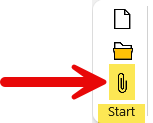
Attach button in Start group


How to update imported slide images

To update your imported slide images:
  • Click Special in the Controls group on the LGPro ribbon

  • Click Replace in the drop down menu & follow the prompts
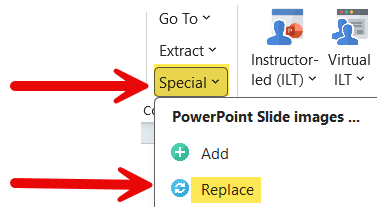
Special-Replace Slides


About Column Widths


Column 1 width is:

  • never more than 1.2 inches

  • never less than 0.5 inches

Do NOT manually adjust column width

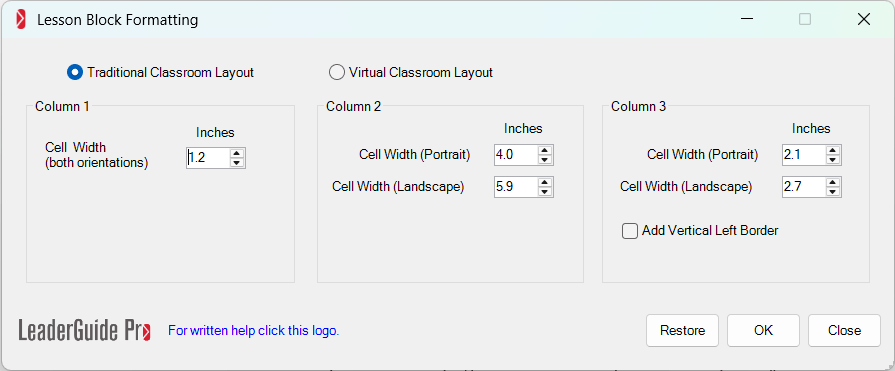
  • Use the LeaderGuide Pro Lesson Block Formatting customizing tool to adjust the Column width.

Column 2 can be set to:

  • Anywhere from 1.0” to 5.6”

  • Reducing the width of Column 1 results in an increase in Column 2.

  • Increasing the width of Column 3 reduces the width of Column 2.

Do NOT manually pull or push the columns to adjust their width. 

  • Adjust Column 2 width using the LeaderGuide Pro Lesson Block Formatting customizing tool. 


Column 3 can be set to:

  • Anywhere from 1.0” to 5.7”

  • Reducing the width of Column 2 results in an increase in Column 3.

  • Increasing the width of Column 2 reduces the width of Column 3.

Do NOT manually pull or push the columns to adjust their width.

  • Adjust Column 3 width using the LeaderGuide Pro Lesson Block Formatting customizing tool. 

Column Width Customizing


To open the Column Width customizing tool:
  • Click Parts in the Customize group on the LGPro ribbon

  • Click Manage Collections in the drop-down menu

  • Select the Collection you want to modify and click Continue

  • Click Select a Part and Block Formatting

  • Use the Lesson Block Formatting wizard to make your changes and click OK

Keep in Mind

Our default settings are there for a reason.

Everything about LeaderGuide Pro has been carefully considered and set up to provide the best experience for you as the developer and for your facilitators as users of the guidebooks you create.


Use the automation LeaderGuide Pro provides.

Taking the time to learn how to work with the automated functions LeaderGuide Pro provides will save time and help you deliver more professional training materials that will be easier to maintain and update.