
Table of Contents
Assign Your Slides
About assigning Slides in your Facilitator Guide
To jump-start your development process, LeaderGuide Pro will distribute your slide images into your Modules and Lessons.
From one PowerPoint file, LeaderGuide Pro will import and distribute:
-
an image of each slide you choose to include
-
you can import all the slides in your file, or only certain ones
-
And any or all of these additional options:
-
the notes associated with each slide
-
just the slide notes - without the slide images
-
the text on the slides
Best Practice
Review your PowerPoint file and decide how the slides will be distributed before you start building your facilitator guide.
Close any other open PowerPoint files.
Assigning slides to Lessons is a two-step process.
Step 1: Specify where to place the slides and notes on your Lesson pages.
Slides will be added into a PPT Slide Content Block, like this one:
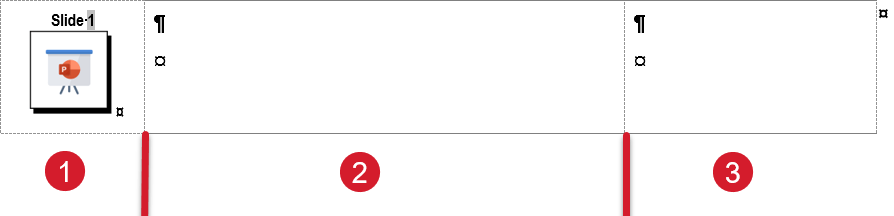
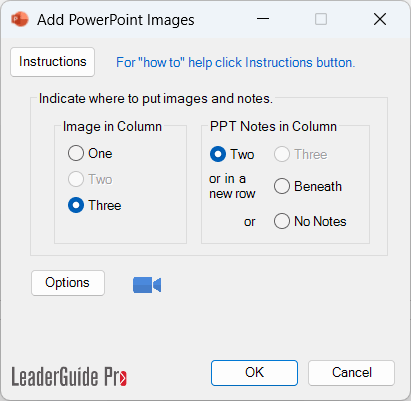
You will be asked to choose which column to add the slides into:
-
Column 1 - as a thumbnail that will replace the LeaderGuide Pro icon
-
Column 2 - to fill a 4" space
-
Column 3 - to fill a 2" space
Based on where you choose to place slides:
-
You will have options for where to place slide notes - if you choose to import the notes.

Options: Click Options for these additional choices

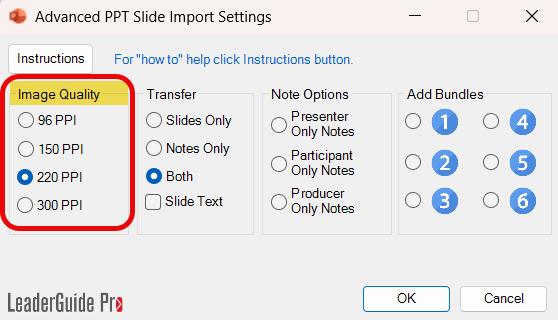
These choices let you control the PPI (Pixels Per Inch) setting of the PowerPoint images being inserted into the document.
-
96 PPI is fine for online viewing and draft prints but not final production printing.
-
150 is the minimum acceptable level for printing.
-
220 PPI is the recommended level for printing.
-
300 PPI might be useful if using a high resolution photographic level printing or if custom paper sizes that reach Word's maximum of 22 in. (55.88 cm) are being used and the image needs to fill the 22" wide page.

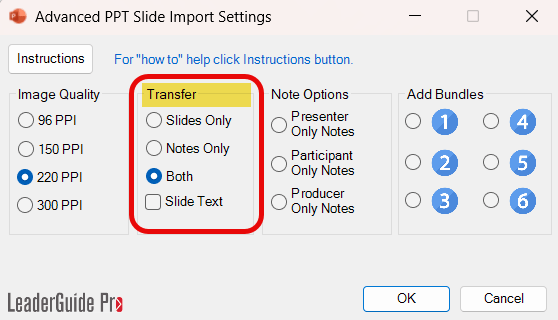
You can choose to transfer into your facilitator guide:
-
only the slide images
-
only the slide notes
-
both slides and notes
-
the text on the slides
Click OK to apply any selections you make
-
Click Cancel if you do not select any of these options
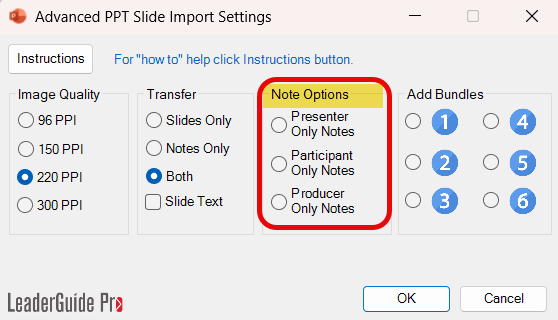
These options are tied to your having previously marked slide notes for specific audiences, including:
-
Presenter
-
Participant
-
Producer
To do this you must use the Scripter function within our AuthorTec tool.

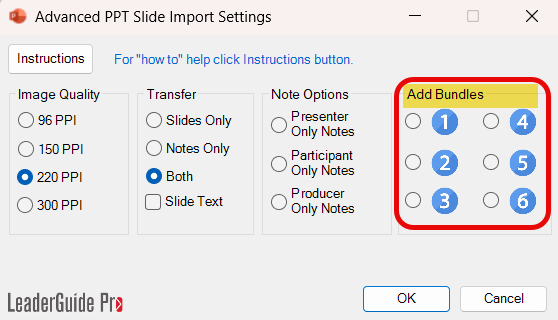
Select any Bundles you would like to add - if you have set up some bundles.
Bundles are groups of Content Blocks that can be inserted with one click. For example:
-
Show PPT Slide - Make Key Points - Ask for questions (Q&A)
- Run Activity - Ask for Questions - Make Key Points
Bundles are created using the Manage Collections function in the Customize Parts group on LeaderGuide Pro ribbon.
Step 2: Specify which slides to add into which Lessons
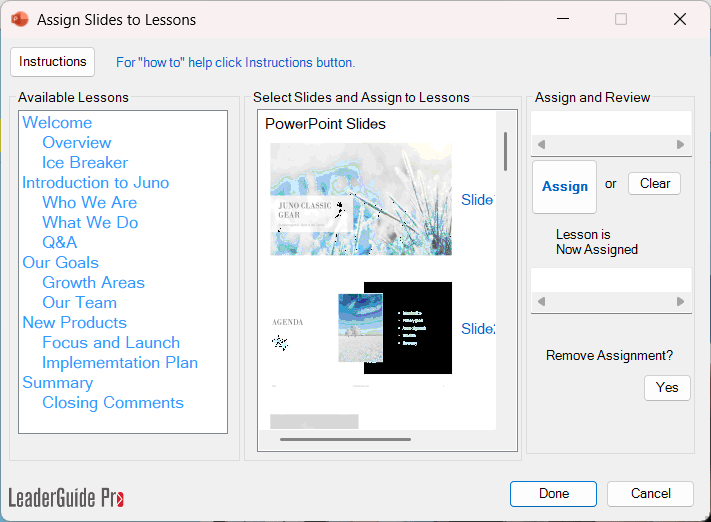
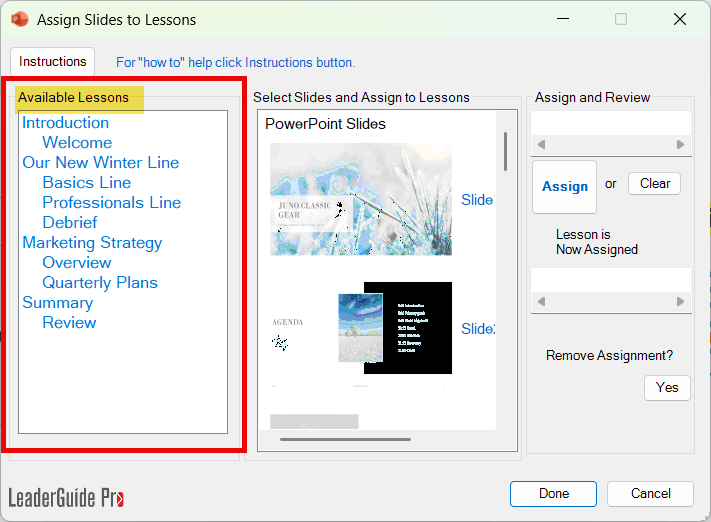
After you specify where to place your slides on your lesson pages, you will see the Assign Slides to Lessons wizard, showing you:
-
The Modules and Lessons in your guidebook
-
The Lessons are indented under the Modules
-
-
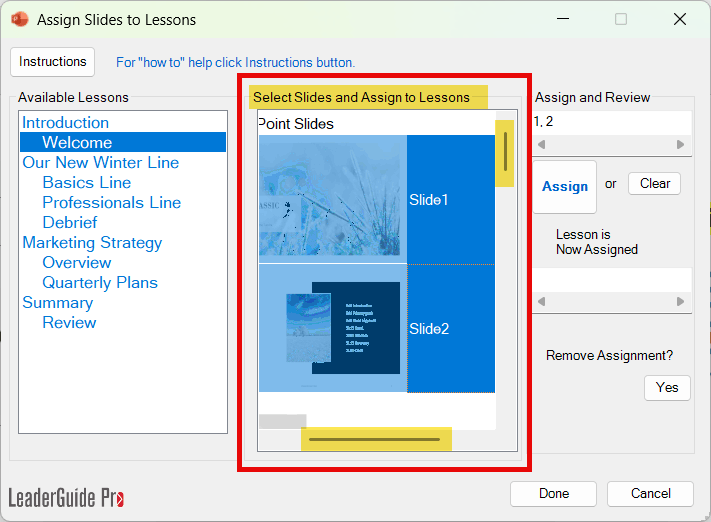
The slides in your PowerPoint file, in numerical order
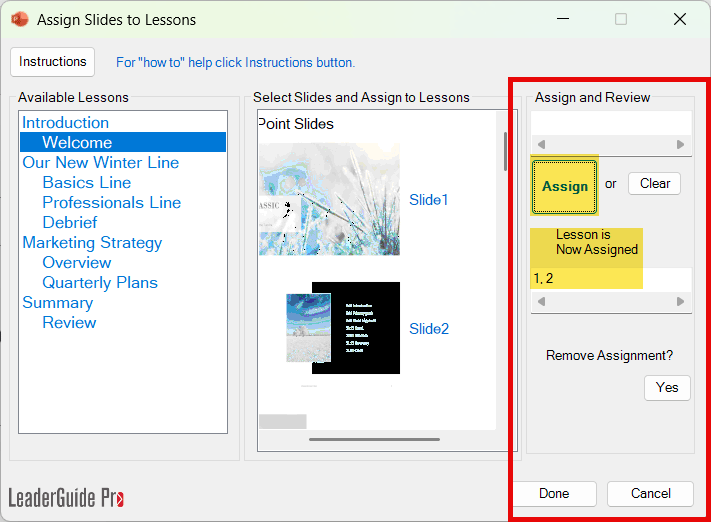
- The Assign and Review controls

IMPORTANT: Slides can only be added to Lessons.
Follow these three steps to assign slides to Lessons

Under Available Lessons
-
Click on a Lesson to select it
Good to know:
-
Lessons are indented under the Module names
-
You can only assign slides to one Lesson at a time
-
It makes sense to work in a logical order.

In the middle column under Select Slides and Assign to Lessons
-
Use the horizontal and vertical pull bars to see your slides and slide numbers
-
Click on a slide to select it for import into your selected Lesson
-
To select multiple slides, press Ctrl+Shift
-
The slides you select will be highlighted and the slide numbers will populate the white box under Assign and Review

Under Assign and Review
-
Click Assign
-
You will see the slide numbers that have been assigned to the highlighted Lesson
-
If you made a mistake you can Remove Assignment
-
When you have finished assigning slides to Lessons, click Done
When all of the slides you want to import are assigned:
-
Click Done
-
Take your hand off your mouse
-
Watch LeaderGuide Pro bring in your slides
When the import is complete:
-
You will see a message indicating success
-
Click OK
-
Your new Facilitator Guide will be on your screen, ready for you to start working in.