



Table of Contents
About Slide Numbering
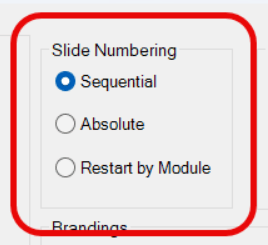
There are three options for slide numbering
Sequential
-
This is the default method of slide numbering
-
Slides are consecutively numbered from 1 to X.
-
If you insert new slide blocks in between existing slide blocks, the numbering is automatically updated when you click Update All Fields on the LGPro ribbon.
Absolute
-
Choose this option if you want the slide numbering to represent the actual slide numbers as they are in their source PowerPoint file(s).
Restart by Module
-
Choose this option if you want the slide numbering to begin at 1 and continue sequentially within each Module.
-
Helpful when each of the Modules in your course have unique slide decks supporting them.
No matter which option you choose ...
The Slide Number always sits above the icon or thumbnail in column 1 of the PPT Slide block ...

How to Change Your Slide Numbering Preference
Step 1:
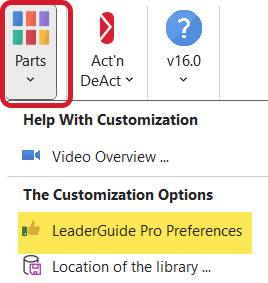
Click Parts on the LGPro ribbon
To get started:
-
Click Parts in the Customize group on the LGPro ribbon
-
Click LeaderGuide Pro Preferences in the drop-down menu
-
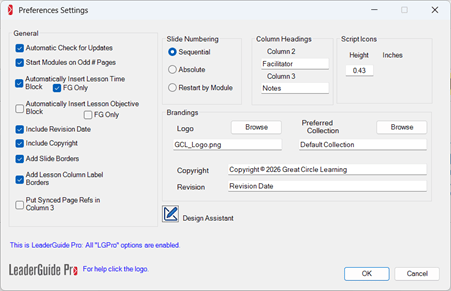
This will open the LGPro Preferences wizard
Step 2:
Use the Preferences wizard
To change your preference:
-
Select the Preference you need in the Preferences dialog box
Step 3:
Apply your Change
To apply your change:
-
Click OK in the lower right corner of the Preferences wizard
-
Click Close in the lower right corner of the Preferences wizard
-
Your new Preference will apply to all new guidebooks you create
-
Your new Preference will NOT affect existing guidebooks
To Update Slide Numbers
To update slide numbering:
If you add PPT Blocks from the LGPro ribbon, or if you delete or reorder PPT Blocks:
-
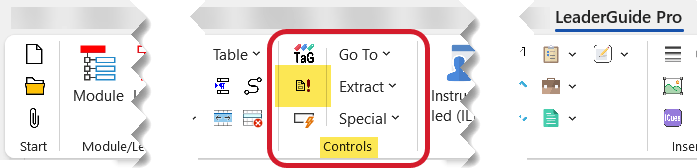
Click Update All Fields in the Controls group on the LGPro ribbon
Do NOT manually adjust the slide numbers
-
Manually changing the slide numbers will interfer with the automated LeaderGuide Pro Update All Fields function for those PPT Blocks.
Because this will negatively impact LGPro functionality, please do not:
-
Delete the Slide Numbers added by LeaderGuide Pro
-
Manually edit the Slide Numbers added by LeaderGuide Pro
To recover the Slide Numbering functionality
If someone accidentally removes or manually changes a slide number added by LeaderGuide Pro:
-
Place your cursor in the trouble PPT block
-
Click Instructor-led (ILT) in the Content Blocks group on the LGPro ribbon
-
Click PPT Slide in the drop-down menu to insert a new PPT block below the existing troubled PPT block
-
Pull the slide image down into the new PPT block
-
Place your cursor back in the trouble PPT block
-
Click Delete Table Row in the Text/Table Formatting group on the LGPro ribbon
-
Click Update All Fields in the Controls group on the LGPro ribbon
Keep in Mind
Colleagues reviewing or editing your file will not know what you know.
When sharing a LeaderGuide Pro file with those who do not know how to use LeaderGuide Pro:
-
Keep a master copy of the file
-
Share only a copy of the master file
-
This way you can more quickly recover from errors that might be made inadvertently by non-LeaderGuide Pro users.
Create a test facilitator guide with a few slides to get used to working with slides.
Taking the time to learn how to work with slides will save time and eliminate headaches. And it will help you create training materials that are easy to maintain and update.