
vid-temp-thumb-1

Create from Text

Script your Slides as you build your Facilitator Guide.


If  you don't already have a slide file, but you know you are going to need one, this unique feature of LeaderGuide Pro allows you to craft your slides as you are building out your Lessons - by adding PPT Blocks into your lesson pages and typing in:

  • The text you need on the slide

  • And a description of the visual you need on the slide

This method:

  • Allows you to put slide placeholders in the exact spots where slides will be needed

  • Allows reviewers to weigh in on the slides before they are created

  • Eliminates wasting time creating slides that will need to be revised

Follow these Three Steps to Create Slides from Text

To add PPT Blocks from the LGPro ribbon:

  1. Place your cursor in the Content Block before the spot where you want the PPT block to sit

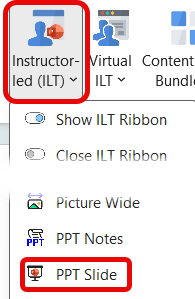
  2. Click Instructor-led (ILT) in the Content Blocks group on the LGPro ribbon

  3. Click PPT Slide in the drop-down menu

  4. This will insert a new PPT block below the existing block you had your cursor in

  5. Whenever you need another slides, repeat steps 1 - 4 as needed

  6. To update the slide numbering: Click Update All Fields in the Controls group on the LGPro ribbon.            

 
To Work in the Blocks
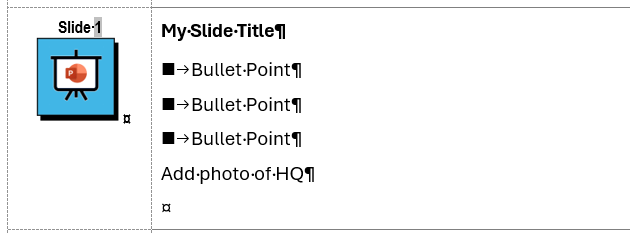
  • Type your slide content into Column 2 - the middle cell in the PPT block.

    • Type your slide title at the first paragraph mark

    • Hit enter to add additional text

    • Your formatting (bullets and numbering) will carry over into PowerPoint

  • Use Column 2 for now even if you ultimately want the slide images to sit in column 3.

  • Do NOT type in or alter anything in column 1 of the PPT block.

Insert PPT Slide Block

Insert a PPT Slide Block
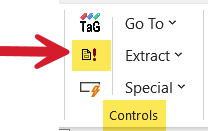

Update All Fields Button Update All Fields


Column 2 PPT Slide Block

Column 2 in a PPT Slide Block


Slide text in Column 2 - example

Example of slide text in column 2

When you are ready to move everything into PowerPoint: 

  • Click Update All Fields to make sure your slide numbering is all set

  • Click Save to save your work

Now, for the magic part!
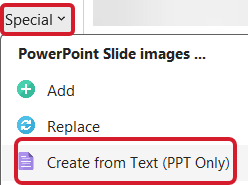
  • Click Special > Create from Text

  • PowerPoint will open and you will see your new slides in a plain vanilla PowerPoint file

  • Save the PowerPoint file

  • Add a slide design and then add your images

  • Save your work


Update All Fields Button

Update All Fields


Special - Create from Text

Special > Create from Text


Run a Replace to complete the process

To begin:
  • Open and minimize your PowerPoint file

  • Open the guidebook you need to update

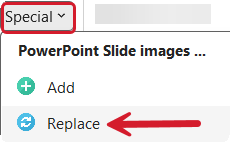
  • Click Special > Replace on the LGPro ribbon

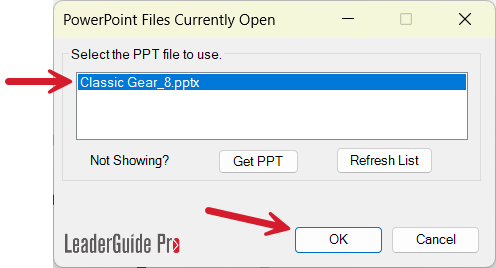
  • Select the PowerPoint file in the dialog box you will see and click OK


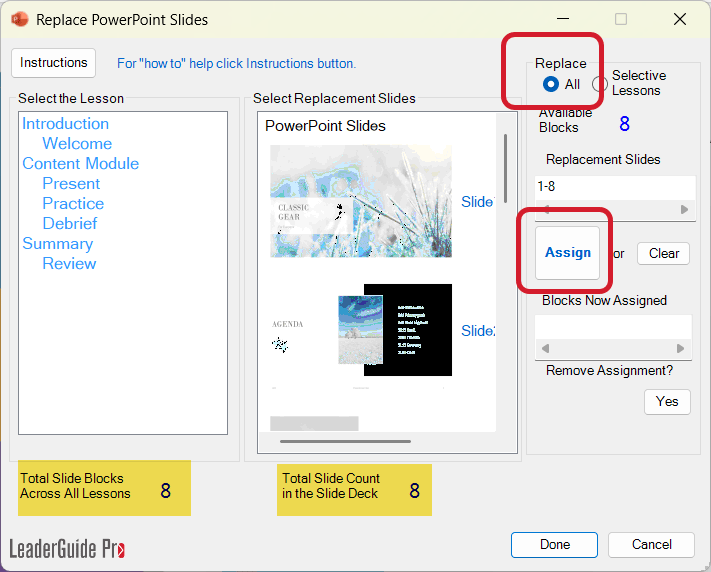
The Replace Wizard will open
  • Click Replace All in the top right

  • Click Assign

  • Click Yes to confirm that you want to replace all slides

  • Click OK in the message telling you the Replace is complete

Special-Replace PPTSpecial > Replace


Select PPT file to work with

Select PPT File


Replace All Slides wizard

Replace All Slides