



To add PPT Blocks from the LGPro ribbon:
-
Place your cursor in the Content Block before the spot where you want the added PPT block to sit
-
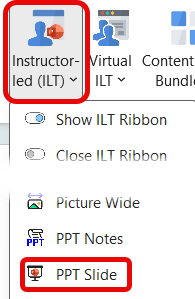
Click Instructor-led (ILT) in the Content Blocks group on the LGPro ribbon
-
Click PPT Slide in the drop-down menu
-
This will insert a new PPT block below the existing block you had your cursor in
-
Repeat steps 1 - 4 as needed
-
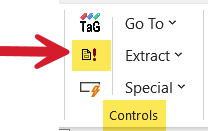
Click Update All Fields in the Controls group on the LGPro ribbon to update the slide numbering
You now have two options:
-
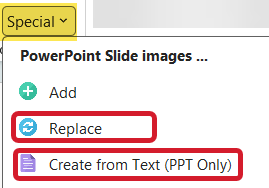
You can run the Replace function to import existing slides - to "replace" the empty space in the PPT Block
-
Or, you can type content into the PPT block and then use the Create PPT from Text function
-
This method will create a basic PPT file with your text
-
After you add images and format your new slides, run the Replace function to import the slides into your PPT Blocks "replace" your text
-
If you have an existing slide file:
-
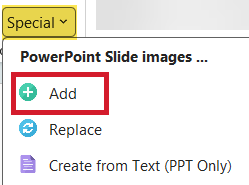
You can add slide images to the end of an existing Lesson, using the Special > Add function
-
Open the PowerPoint file you want to import
-
Click Special in the Controls group on the LGPro ribbon
-
Click Add in the drop-down menu
-
Follow the prompts to add your slides
NOTE:
If your Lessons are built out and you want to add slides into specific locations within your Lessons - instead of at the end of a lesson:
-
Use the Add PPT Blocks approach and then use Replace to replace the empty space in the PPT blocks with your slides.
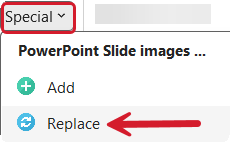
Special > Replace
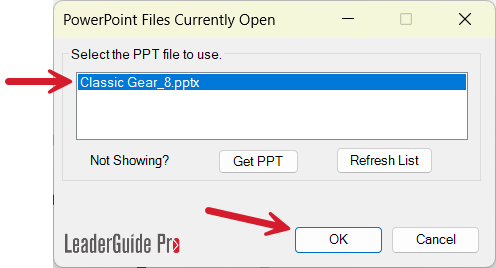
Select the PPT file to use
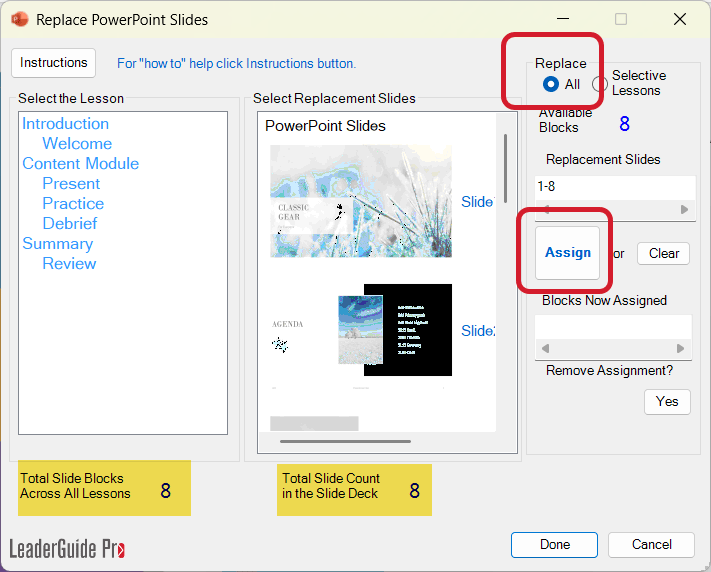
Replaces All > Assign
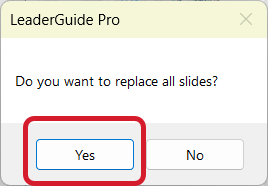
Yes replace all slides
OK - Replace Complete
Special > Replace
Select PPT file
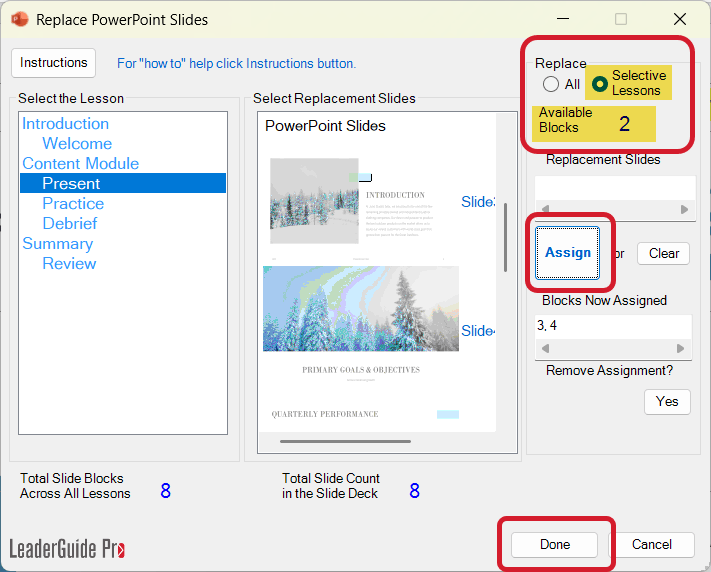
Replace Selective > Assign
OK - Replace Complete