
LeaderGuide Pro creates two types of instructional guidebooks
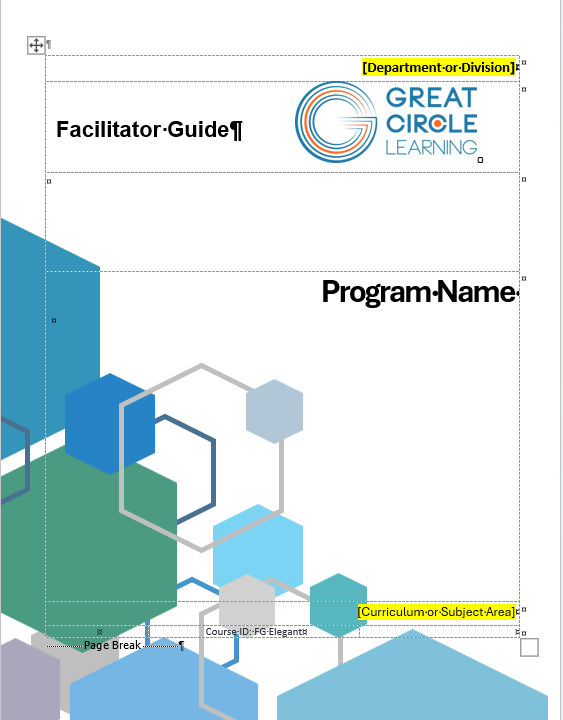
A Facilitator Guide to serve instructors as a study guide and a delivery roadmap with clear, concise and complete information and directions
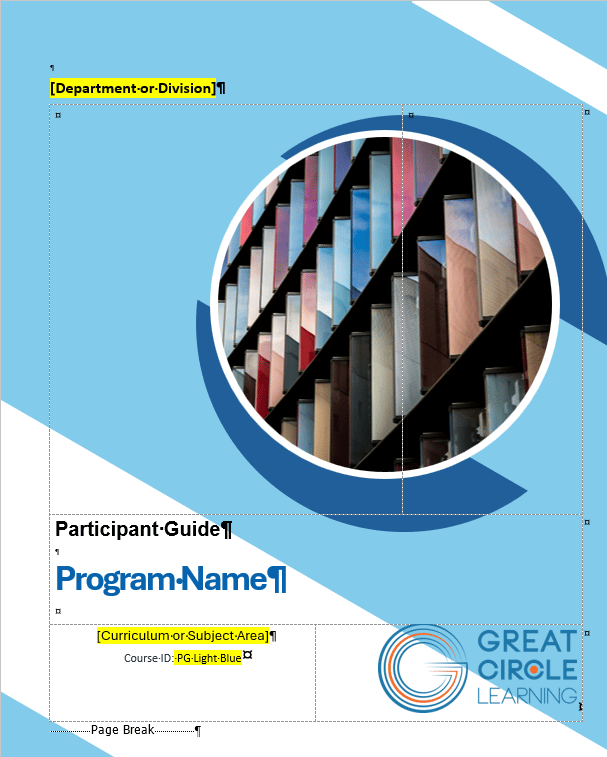
A Participant Guide to support learners with key points, instructional exercises and capture space for notes
Both guidebooks follow the same instructional framework:
- Modules
- made up of Lessons
- that are built from Content Blocks
- made up of Lessons
This framework chunks information into manageable pieces, making the training easier to follow and apply.
Why Two Guidebooks?
 |
|
Facilitator Guide
|
Participant Guide
|
📍TIP: A Participant Guide can be Extracted from a Facilitator Guide
Building a Facilitator Guide first and then Extracting a Participant Guide allows you to automatically:
- Sync content updates from one guidebook to the other
- Insert Participant Guide Page References into the Facilitator Guide
Standard Guidebook Structure
Both guidebook types are built with the same sections and parts
| Facilitator Guide | Participant Guide |
|
Section 1
Section 2: Preparation
Section 3: Delivery
Optional Section 4: Appendix
|
Section 1
Section 2: Preparation
Section 3: Delivery
Optional Section 4: Appendix
|
Every Facilitator and Participant Guide Contains ...
A Cover Page
An Acknowledgements Page
A Table of Contents (TOC)
Modules and Lessons
Facilitator and Participant Guide Differences
Table of Contents
|
|
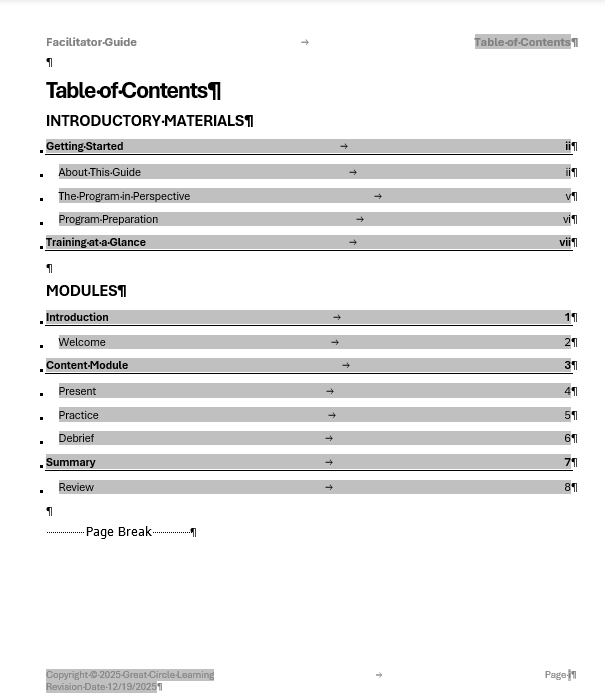
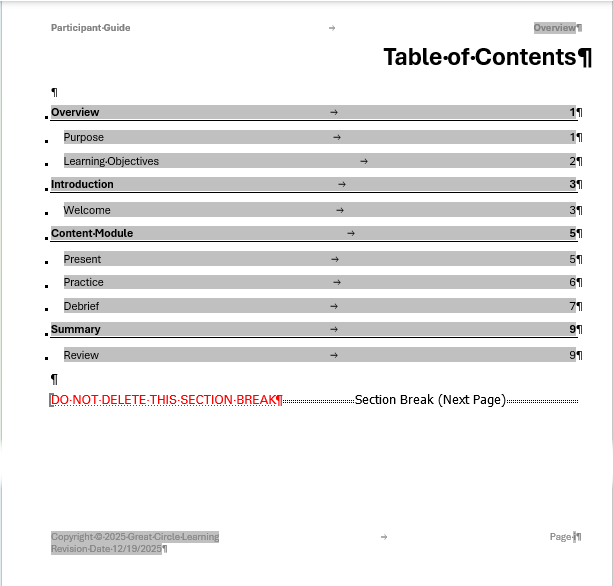
| Facilitator Guide Table of Contents | Participant Guide Table of Contents |
|
|
Modules
|
 |
|
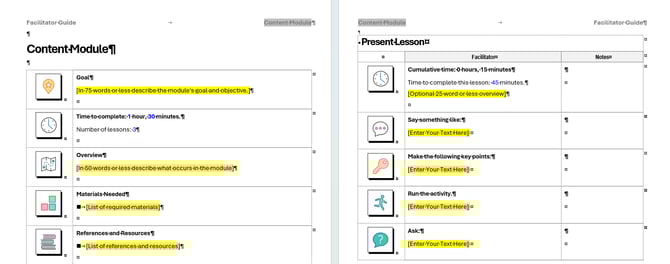
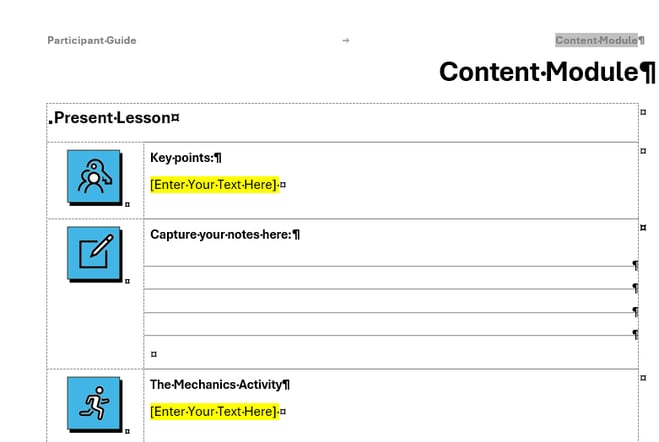
Module-Lesson Example Facilitator Guide
|
Module-Lesson Example Participant Guide
|
Lessons - Content Blocks
|
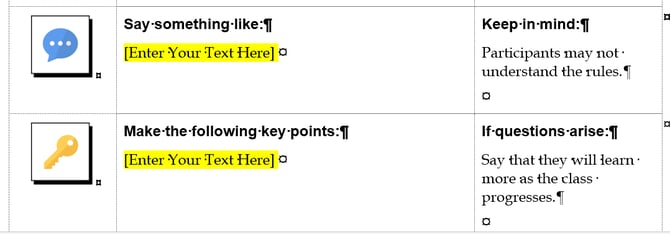
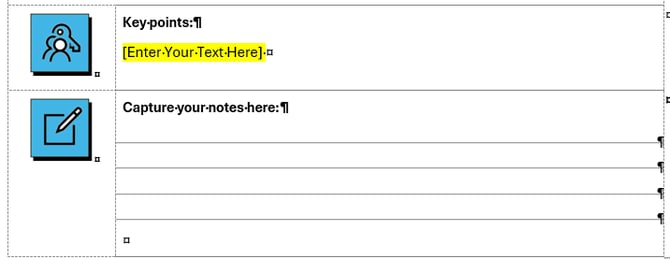
Content Block Examples Facilitator Guide |
Content Block Examples Participant Guide |
|
|
When working in a Facilitator Guide or Participant Guide
Page Headers display the guidebook type and current Module name
The Program Name/Course name on the Cover page is repeated in key spots within the documents
Module Names appear in the Table of Contents and in the Training at a Glance in a Facilitator Guide
Lesson Names appear indented under the Module names in the Table of Contents
A new Lesson always start with a Lesson Time Block unless you change this in Preferences
Content Blocks are used to build Lesson pages
Content Blocks form a Lesson Table that flows automatically from one page to the next until a new Lesson or new Module is added
The last Lesson in a Module always ends with a Transition Block that displays the name of the next module
Even Page Footers show the page number and Program Name
Odd Page Footers show page number and copyright and revision date
Page breaks and section breaks appear when Word's formatting marks are turned on to help you avoid deleting them
Non-printing red text appears at various points in the document to help you avoid deleting important code elements required by LeaderGuide Pro
Word's non-printing formatting marks are visible to help you maintain a professional appearance - including:
- Paragraph marks
- Dots that indicate spaces
- End of cell and end of row symbols
- Tabs
- Field brackets
- Page Breaks
- Section Breaks
- Non-printing text
Best Practices
- Work locally on your computer
- Work with Word's formatting marks on
- Use the LeaderGuide Pro ribbon buttons
- Honor and keep in place the elements that LeaderGuide Pro provides
- Add Content Blocks from the ribbon
- Allow LeaderGuide Pro the time it needs to complete a task after you click a button on the ribbon
- Stay out of the non-printed red text on the pages where it appears
- Let LeaderGuide Pro manage pagination and page layouts
- Use the LeaderGuide Pro customization wizards to change fonts, styles, logos, colors, default text, cover pages, content block column widths, guidebook type names, headers and footers, and more
- Contact Great Circle Learning for help when needed