
Understanding how LeaderGuide Pro operates is your key to success
LeaderGuide Pro Smart Templates and specialized code
LeaderGuide Pro automates the creation of professionally formatted and logically structured facilitator guides and participant guides to:
- to ensure consistency and structural integrity
- save time and money
LeaderGuide Pro uses code and smart templates to dynamically automate Microsoft Word
- by providing cognitive prompts to focus a user's work process and
- to populate formatted fields based on user input and included software elements
When you create a new Facilitator Guide or Participant Guide
You end up with a "Word on steroids" starting point document that is overlaid with the LeaderGuide Pro smart templates and code running in the background
📍TIP: Start by working WITH what you are given
Every page and every element in a new guidebook is there for a reason
And Word's formatting marks are turned on for a reason
And you will have the LeaderGuide Pro ribbon showing along the top of your screen

📍TIP: The ribbon buttons are organized into groups, by functionality
Each button automates a specific work task that would otherwise require more time and/or advanced knowledge of Word to perform
Hover your cursor over a ribbon button to see a screen tip describing what the button does for you
To successfully use LeaderGuide Pro to build your new Facilitator Guide
Leave in place everything that you are given
Look through your new document page by page
Make notes about anything you would like to customize or remove
Text highlighted in yellow is meant to be typed over by you with your content - except for the Training at a Glance page - leave that alone for now
On your first Module Overview page remember to leave everything in place and simply type over the highlighted prompts
The next page is the first page of the first Lesson in your first Module - THIS is where you start adding your instructional content
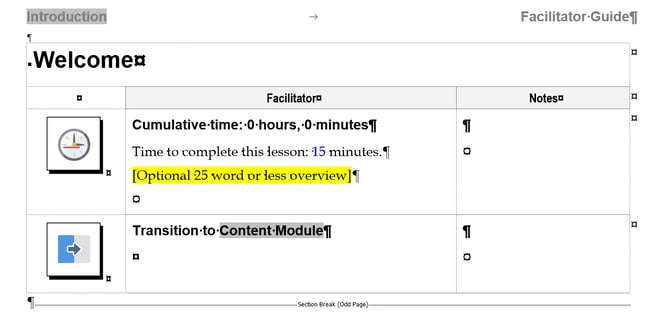
To work successfully on a Lesson page
Notice that the page contains a Table that holds icons and text
Remember to leave in place everything you are given as a starting point
- Place your cursor in the Time block
- Click on the Instructor-led (ILT) Content Blocks button on the LeaderGuide Pro ribbon
- Click on a Content Block
- The Content Block will appear just below the Time Block on your Lesson page
- Type content into the Block and leave your cursor in that Block
- Repeat steps 2 - 5 to continue adding content to this lesson
📍TIP: Always add Content Blocks from the LeaderGuide Pro ribbon
Wherever your cursor is, a new Content Block will insert immediately below
To remove a Content Block click the Delete Table Row button on the LeaderGuide Pro ribbon
To add New Modules and Lessons
- Place your cursor at a paragraph mark below/underneath the final Content Block in your current Lesson
- Click either the Module Button or the Lesson button on the LeaderGuide Pro ribbon
Here are a few of the many "behind the scenes" moving parts working on your behalf as you use LeaderGuide Pro
- Brand Elements: Logos, cover pages, copyright, headers, footers, icons, style guides
- Customizable Collections: Dedicated aspects of the guidebook templates where users can input custom text and images without affecting the master layout and functionality of the software
- Dynamic Smart Fields: Placeholders that automatically pull data from special styles to populate key areas of the guidebooks (e.g. the Program Name on the Cover page automatically populates in various locations within the document)
- Dialog boxes and Wizards: LeaderGuide Pro regularly shares information about what it is doing, asks questions, and provides guided options to automate the work tasks necessary to build your facilitator and participant guides
- Logic-based Rules: The logic used to determine which sections and elements are included - such as:
- whether a facilitator guide or a participant is created
- the overall look and feel - by virtue of the Collection selected
- whether PowerPoint is included - and where slides are placed on the lesson pages
What all of this means for you as a user
Even though LeaderGuide Pro runs within Word - ALWAYS use LeaderGuide Pro first - because LeaderGuide Pro operates based on logic and data integration that is reliant on the code it overlays on Word
LeaderGuide Pro
- Automates advanced functions of Word
- Adds additional functionality not otherwise available
- Automatically builds professional training materials - freeing users from worrying about formatting
- Provides cognitive prompts to guide workflow
You must use the LeaderGuide Pro functions to attain its benefits
- Always have the LeaderGuide Pro ribbon showing as you work in a Guidebook
Rather than falling back on Word habits:
- Always start new facilitator guides and participant guides from the New button on the LeaderGuide Pro ribbon
- Use the page layouts in the facilitator and participant guides as provided
- Use the styles and formatting as provided
- Use the icons and graphic instructional cues as provided
- Follow the document structure and page layout conventions
- Always insert Content Blocks from the LeaderGuide Pro ribbon
- Work with Word's formatting marks turned on
- Only share copies of your LeaderGuide Pro documents with non-users
- Make sure all document contributors and editors understand the software
- Always keep master copies of your LeaderGuide Pro documents
📍TIP: When to use the LeaderGuide Pro Customization wizards ...
- AFTER becoming familiar with what LeaderGuide Pro does
Start by using LeaderGuide Pro as provided
- to get to know and understand how the software helps you work more productively
Then ...
- Leverage the included customization functions to ensure your LeaderGuide Pro guidebooks meet your branding and corporate requirements.
LeaderGuide Pro is highly customizable and
- using the LeaderGuide Pro Customization wizards ensures that your changes will not impact the software's functionality
When to use Word vs. LeaderGuide Pro
Because LeaderGuide Pro runs within Word, it is important to know when to use LeaderGuide Pro and when to use Word.
Use Word to:
- Access the LeaderGuide Pro ribbon and use the software
- Save the documents you create with LeaderGuide Pro
- Print or view the guidebooks in Print Preview mode
- Type in or delete text within a Content Block
- Copy and paste content copied from within a guidebook
Use LeaderGuide Pro to:
- Start a new guidebook - use the New button
- Open an existing guidebook - use the Open button
- Add Modules and Lessons - use the Module and Lesson buttons
- Reorder, Delete or Archive Modules and Lessons - use Librarian
- Paste content copied from other sources - use the Paste Special button
- Add a Content Block - use the Content Block buttons
- Delete/remove a Content Block - use the Delete Table Row button
- Add bullets or numbered lists
- Use the Bullet>Promote>Demote buttons
- And the Number>Promote>Demote>Restart List buttons
- Import PowerPoint slides and notes
- Import images and chunks of content from other documents
- Resize slides and other images
AVOID using these Word functions
- Undo and Redo
- Because most LeaderGuide Pro tasks involve multiple steps (that happen so fast that you don't see them) while Undo and Redo only address the very last action, which is usually not enough
- Font, Paragraph and Styles
- To make these types of changes, use the LeaderGuide Pro Customization wizards to create a Custom Collection
- By creating a Custom Collection you:
- only have to make the changes ONCE and then simply use your custom Collection
- and this ensures that the LeaderGuide Pro functionality remains intact
Learn More
About the LeaderGuide Pro Guidebooks
Facilitator Guide Walk-Through
Participant Guide Walk-Through
About Content Parts
About Content Blocks
About PowerPoint and LeaderGuide Pro