

Working with the Module Overview Page
This page orients the trainer to what they need to do to run just this portion of the training.
Every Facilitator Guide contains at least one Module, which begins with a Module Overview page.
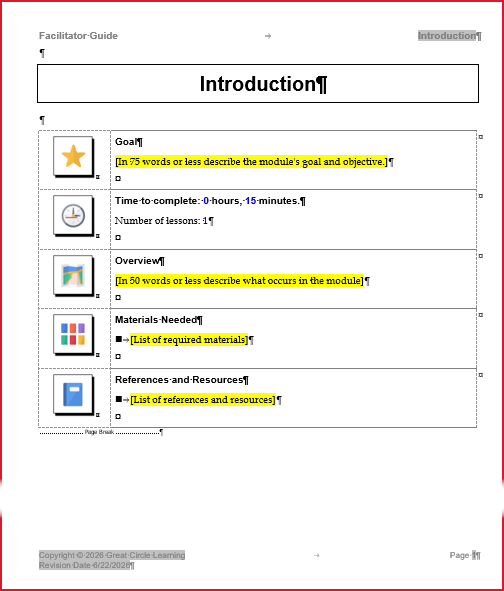
Module Overview pages are only used in Facilitator Guides.
They summarize each instructional topic in your course for the Facilitator.
The Module Name at the top of the page:
Has the equivalent of a Heading 1 designation
And shows up that way in the Table of Contents.
Every Module Overview Page:
Is just One page.
Contains the same Module Content Blocks.
Is always followed by at least one Lesson - where the instructional content sits.
The appearance of this page is dictated by the Collection in use. To change the fonts or icons:
Choose a different Collection.
Do NOT manually change the fonts or delete the icons.
Do NOT delete the page break.
Take a closer look, below, to learn how to work with the Module Overview page.

Select an option below:
- Module Name
- Goal
- Time to complete
- Overview
- Materials Needed
- References & Resources
Materials Needed Block
Do NOT delete this Content Block.
Use this space to list the materials the facilitator must have on hand to deliver this portion of the training.
Also list here any technical requirements for this Module.
There is a full list of ALL the materials needed for the entire course on the Program Preparation page in the Getting Started section of your Facilitator Guide.
Module Name
This is a field that holds the name of an instructional topic in your course.
What appears here also populates the Table of Contents, the Training at a Glance and the odd-numbered page headers.
Below are three examples of how a Module Name may look when using the Default Collection. No matter which Collection you use, or which scenario you see, the process for editing the name and updating your document is the same, and very easy. Learn how below.
NOTE: The examples are shown with Word's non-printing formatting marks on, because this is the way you will work. The formatting marks do not show when you print or PDF the document.
Module Name Filled In from Guidebook Design Template
If you used the Guidebook Design Template as you started your Facilitator Guide, this is an example of how the name on your first Module Overview page may look.
To edit the name:
-
Type over the existing text.
-
You will see your new Module name in the page header.
To update the name in the Table of Contents and Training at a Glance:
-
Click Update All Fields
Module Name filled in without Guidebook Design Template
If you did not use the Guidebook Design Template as you started your Facilitator Guide, this is an example of how the name on your first Module Overview page will look.
To edit the name:
-
Type over the existing text.
-
You will see your new Module name in the page header.
To update the name in the Table of Contents and Training at a Glance:
-
Click Update All Fields
Module Name added from the Text/Table Formatting group
If you add a new Module to your Facilitator Guide using the Module button in the Text/Table Formatting group but you do not include a Module Name in the wizard, this is an example of how the new Module name will look.
To edit the name:
-
Type over the existing text - including the brackets.
-
You will see your new Module name in the page header.
To update the name in the Table of Contents and Training at a Glance:
-
Click Update All Fields
To add your new Module into the Training at a Glance:
-
Click TAG
Module Overview Block
Do NOT delete this Content Block.
Use this space to describe what the Facilitator and participants will be doing during this segment of the training.
The information you add here will:
-
Help the Facilitator stay on track during the live delivery.
-
And, this information will populate the Training at a Glance page.
Module Overview Block
This is a two-cell table row.
-
To edit the first line of text in cell two, simply type over it.
-
To edit the text highlighted in yellow, click your cursor in it and then start typing. The yellow will go away.
-
Type in an overview for just this Module (not the whole course).
-
To add a bulleted or numbered list, use the buttons in the Text/Table Formatting group.
Module Overview Block
-
Briefly describe what the Facilitator and participants will be doing in this portion of the training program.
-
What you type in here will also be displayed on the Training at a Glance page.
-
To change the icon or the fonts, choose a different Collection.
-
Do not manually delete or change the icon in cell one or the fonts or styles of the text in cell two.
Module Time
Do NOT delete this Content Block.
Facilitators need to know how much time they have to complete this portion of the training.
If you use the Lesson Time Blocks that LeaderGuide Pro will automatically add at the start of every new Lesson (recommended) then you do not/should not type in this Module Time Block.
LeaderGuide Pro will calculate the Lesson times to update the Module time. Easy, right?
If you choose not to use the Lesson Time Blocks, then you will need to type in the Module time. Learn how below.
Module Time Block
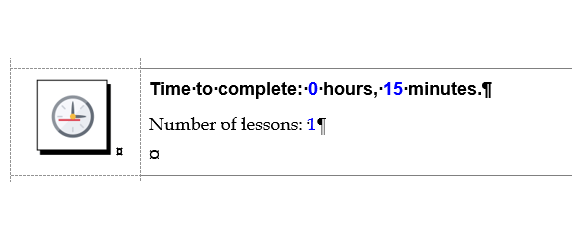
This is a two-cell table row.
-
The time displayed in the first line of text will be added and updated by LeaderGuide Pro - based on the times you add into this Module's Lesson Time Blocks.
-
The Number of Lessons displayed in the second line of text will be added and updated by LeaderGuide Pro - based on the number of Lessons you add into this Module.
-
The Time and Number of Lessons displayed here is for just this Module (not the whole course).
-
To change the icon in cell one, choose a different Collection.
-
Do not delete or change the font or styles or color of the text in cell two.
Editing the Module Time Block
If you do not use the Lesson Time Blocks, you can type in your Module Time.
-
Carefully type over the blue numbers with your numbers.
-
Do not delete the hours or minutes.
-
For example, if your Module Time is:
-
One hour, the Time Block should read: 1 hours, 0 minutes
-
25 minutes, the Time Block should read: 0 hours, 25 minutes
-
How the Module Time Block Helps You
The Module Time Block keeps track of your training program time.
LeaderGuide Pro uses the Module Time block to:
-
Calculate your Module time based on your Lesson times.
-
Populate the Training at a Glance with accurate Module Time information.
-
Populate the Program in Perspective page with the total time required to deliver the entire training program.
-
Calculate the number of days required to deliver your training program based on your daily start and stop times to build a timed Agenda for you.
-
Click Extract > Agenda Time Calculator to access the Timed Agenda Calculator and generate a timed Agenda.
-
Module Goal Block
This is a placeholder for the learning goal for just this Module.
Use this space to make sure the facilitator knows what must be accomplished in delivering this Module.
Below are examples of the Goal Content Block with instructions on how to work in it.
Note: While the icon and fonts you see will vary, depending on which Collection you are using, the Goal Content Block is always a two-cell table row that displays an icon in cell one and content in cell two.
Module Goal Block
This is a two-cell table row.
-
To edit the first line of text in cell two, simply type over it.
-
To edit the text highlighted in yellow, click your cursor in it and then start typing. The yellow will go away.
-
Type in the learning goal for just this Module (not the whole course).
-
To add a bulleted or numbered list, use the buttons in the Text/Table Formatting group.
-
To change the icon, choose a different Collection.
Goal Example
To craft a Module's learning goal:
-
Review the learning objectives of the Lessons in the Module.
-
Based on that information, write a brief description of the intent of those objectives.
-
You want the the facilitator to know what needs to be accomplished to ensure that the participants achieve the learning objectives.
Materials Needed Block
This is a two-cell table row.
-
To edit the first line of text in cell two, simply type over it.
-
To edit the text highlighted in yellow, click your cursor in it and then start typing. The yellow will go away.
-
Type in the materials needed to deliver just this Module (not the whole course).
-
To add sub-bullets or a numbered list, use the buttons in the Text/Table Formatting group.
-
There is a full list of ALL the materials needed for the entire course on the Program Preparation page.
Materials Needed Block
-
To change the icon or the fonts, choose a different Collection.
-
Do not delete or change the icon in cell one.
-
Do not change the font or style of the text in cell two.
Module References and Resources
Use this space to provide the Facilitator with a list of references and resources related to the content presented in this Module of the training program.
References & Resources Block
This is a two-cell table row.
-
To edit the first line of text in cell two, simply type over it.
-
To edit the text highlighted in yellow, click your cursor in it and then start typing. The yellow will go away.
-
Type in a list of references and resources for this Module (not the whole course).
References & Resources Block
-
To change the icon or the fonts, choose a different Collection.
-
Do not delete or manually change the icon in cell one.
-
Do not change the font or style of the text in cell two