
vid-temp-thumb-1

Working with a Lesson Page

The Lesson pages provide the trainer with step by step directions to deliver the training.


Every Module contains at least one Lesson, which contains the instructional content for the facilitator and learning material for participants.

Lesson pages are used in Facilitator Guides and Participant Guides.
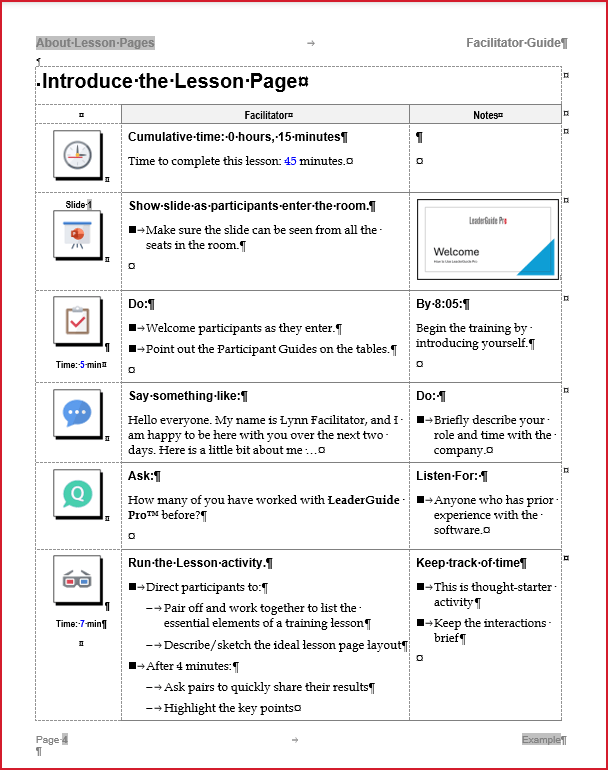
 

Built out Lesson page example

For the Facilitator, Lesson pages work like sheet music to direct the delivery of the instruction.

Lesson pages are built out with Content Blocks.

Content Blocks include the following elements to make the instructions easy to follow. 

Icons visually cue the Facilitator

Headlines cue the action needed

Directions that are clear, concise and complete - written by you


Each Content Block:

Is added from the Content Blocks group on the LGPro ribbon

Contains an icon in cell one and a headline followed by text in cells two and three

Can be either a two-cell or three-cell table row


As you add Content Blocks and content into the Blocks:

The page will naturally flow over to subsequent pages

If a Block moves to the next page leaving too much space on the prior page, click Flow Table in the Text/Table Formatting group

Use the Move Up/Move Down buttons the the Content Blocks group to reorder the Blocks for the best instructional flow

 Take a closer look, below, to learn how to work with the Lesson page.
Select an option below:

Format Content Block Text

Do NOT manually format the text in your Content Block.

Use the buttons in the Text/Table Formatting group to apply LeaderGuide Pro styles and formats.

Consistent formatting is one of the hallmarks of any professional document. Using the LeaderGuide Pro styles will ensure consistent formatting.

Each LeaderGuide Pro Collection has it's own Style Guide, which you can customize if needed. This way you make your formatting changes once and LeaderGuide automatically applies them, no matter who is doing the work.

You don't have to wait until a Style Guide is updated. Simply use LeaderGuide Pro as is. And then, once your custom Style Guide is ready you can use the Attach function to update your styles. This works because:

  • LeaderGuide Pro has a set of style names that are consistent across all of the Collections.

  • When you customize styles in a Collection's Style Guide, you are changing the attributes of the styles, such as the fonts or point size, but you are not changing the style names

  • Thus, when you use the Attach function to change an existing guidebook to a different Collection, LeaderGuide Pro finds the style names and updates the styles attributes based on the Collection being attached.

Contact us for assistance with customizing a Style Guide. We are happy to help you.

Learn more below.


Lesson Name

This is a field that holds the name of an instructional sub-topic in your course.

What appears here also populates the Table of Contents and carries over across the top of the rest of the pages in the Lesson.

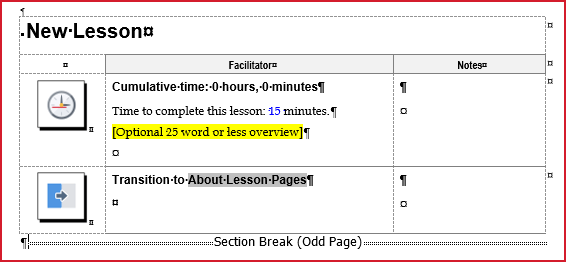
Below are three examples of how a Lesson Name may look when using the Default Collection. No matter which Collection you use, or which scenario you see, the process for editing the name and updating a Lesson name is the same, and very easy. Learn how below.

NOTE:  The examples are shown with Word's non-printing formatting marks on, because this is the way you will work. The formatting marks do not show when you print or PDF the document.

Lesson Name example 1

Lesson Name filled in from Guidebook Design Template

If you used the Guidebook Design Template as you started your Facilitator Guide, this is an example of how the name on your first Lesson page in your first Module may look.

To edit the Lesson name:
  • Type over the existing text on the first page of the Lesson.

  • The new name will automatically update in the table heading row along the top of the rest of the pages in the Lesson.

  • Do NOT change the font or style.

To update the Lesson name in the Table of Contents:
  • Click Update All Fields in the Controls group on the LGPro ribbon.

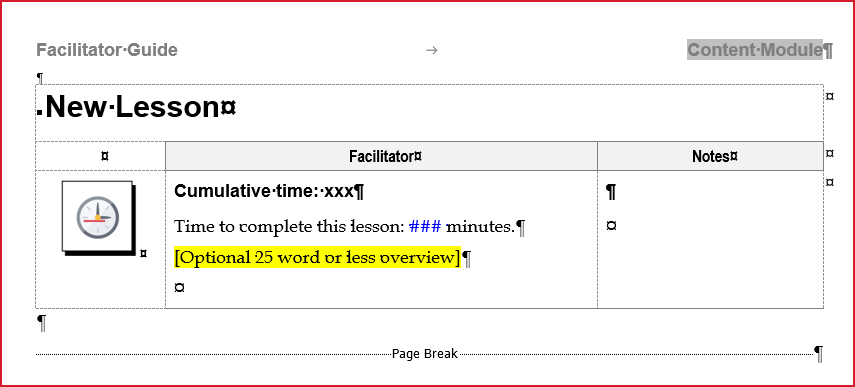
New Lesson Example 2

Lesson Name filled in without Guidebook Design Template 

If you did not use the Guidebook Design Template as you started your Facilitator Guide, this is an example of how the Lesson name on your first Lesson page in your first Module will look.

To edit the Lesson name:
  • Type over the existing text on the first page of the Lesson.

  • The new name will automatically update in the table heading row along the top of the rest of the pages in the Lesson.

  • Do NOT change the font or style.

To update the name in the Table of Contents and Training at a Glance:
  • Click Update All Fields 

Lesson Name Example 3

Lesson Name added from the Text/Table Formatting group

If you add a new Module to your Facilitator Guide using the Lesson button in the Text/Table Formatting group but you do not include a Lesson Name in the wizard, this is an example of how the new Lesson name will look.

To edit the Lesson name:
  • Type over the existing text on the first page of the Lesson.

  • The new Lesson name will automatically update along the top of the rest of the pages in the Lesson.

  • Do NOT change the font or style.

To update the name in the Table of Contents and Training at a Glance:
  • Click Update All Fields in the Controls group 

Add a Content Block

You will build out your Lesson pages with Content Blocks.

Contents Blocks chunk your instructions into manageable bites that help your Facilitators deliver the training consistently.

Content Blocks are either two-cell or three-cell table rows. We recommend using three-cell blocks for Facilitator Guides.

Every Content Block has the same setup, no matter which Collection you use.

  • Cell One is reserved for use by LeaderGuide Pro and typically holds an icon. It can also hold a slide thumbnail and Content Block time. Do not type in it or change it.

  • Cell Two is for you to use, to add instructional content, or to hold a slide or other image.

  • Cell Three is also available for you to use, to add information for the instructor or Producer, or to hold a slide or other image, or to serve as a space the Trainer can use for notes. 

Always add Content Blocks from the LeaderGuide Pro ribbon.

Do NOT copy and paste Icons from one Content Block into another.     

Content Blocks provide at a glance guidance to your Facilitators about what they are to say and do.

Say Block

Content Block Example

This is a three-cell Say Block.

  • To edit the first line of text in cell two, simply type over it.

  • To edit the text highlighted in yellow, click your cursor in it and then start typing. The yellow will go away.

  • Type in what you want the Facilitator to say. Pro Tip:

    • Instead of typing in something like "Describe the five step process"

    • Type in exactly what you want said about the five step process.

  • To add a bulleted or numbered list, use the buttons in the Text/Table Formatting group. 

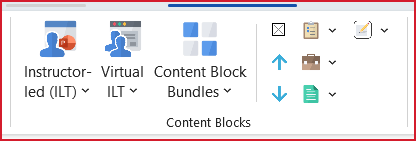
Content Blocks group on LGPro ribbon

How to Add a Content Block

First:

  • Place your cursor in the second cell of a Block immediately above/before the spot where you want your new Content Block to sit.

Next, in the Content Blocks group on the LGPro ribbon:

  • Click either Instructor-led (ILT) or Virtual ILT to reveal a drop-down menu of Content Blocks to choose from.

  • Click on a Content Block to add it to your Lesson page.

FYI:

  • As you add Content Blocks you will build a continuous table that will automatically flow over multiple pages.

  • Do not manually add space between your Content Blocks.

  • You can put space around a Content Block by adding an Empty Block before it and after it.
Empty Block button on LGPro ribbon


Lesson Time Block      

This Block feeds the Module Time Block on the Module Overview page and the Program Time Block on the Program in Perspective page.

Use this Block to let your Facilitators know how much time they have to deliver this portion of the training.

LeaderGuide Pro will:

  • Automatically add a Lesson Time Block at the start of every new Lesson. It will sit immediately below the Column Headings row.

  • Use the Lesson times to calculate and update the Module times, the overall program time, and to build your timed Agenda. 

If you choose not to use the Lesson Time Blocks:

  • While you can delete the Lesson Time Block, we strongly recommend that you use this Block.

  • Instead of deleting them, you can set a Preference for LeaderGuide Pro not to include them on your new Lesson pages.

Learn how to work with the Lesson Time Block below.

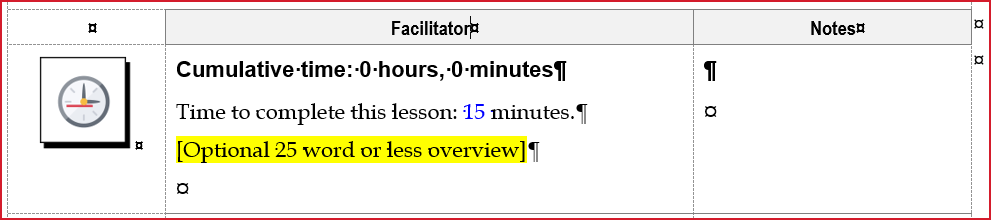
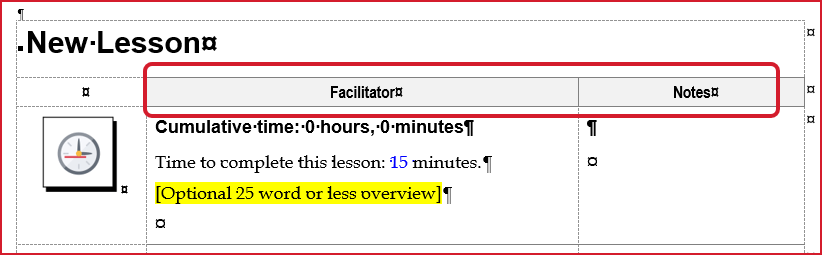
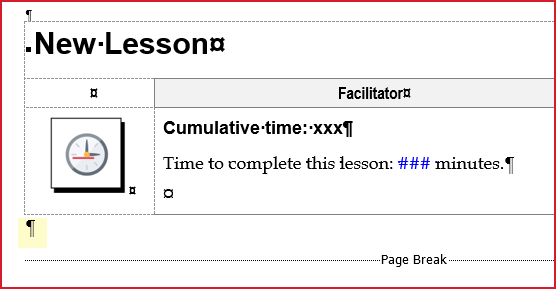
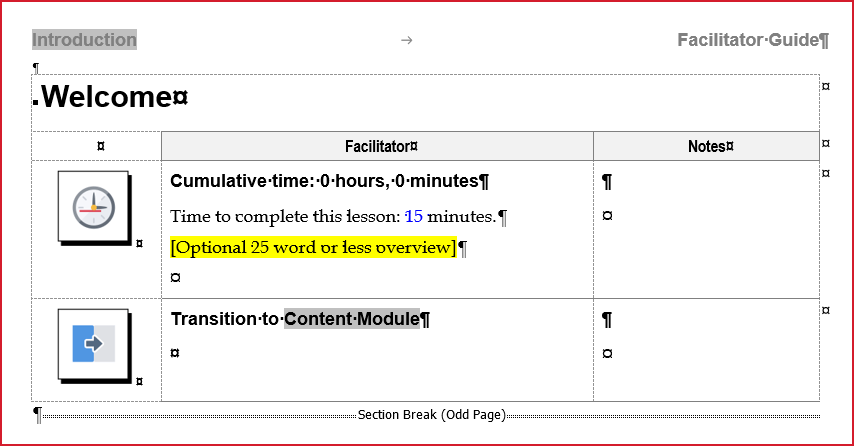
Lesson Time Block-from GDT

Lesson Time Block

This is either a two-cell or three-cell table row, depending on the number of columns choice you made when setting up your new Facilitator Guide.

  • Do NOT change or delete the icon in cell one, and do not type in cell one.

The first line of text in cell two
  • LeaderGuide Pro manages this text for you. Do not type in or delete this text.

  • The first line of text in cell two displays the cumulative time that has been spent on program delivery so far, based on LeaderGuide Pro's calculations of the Module and Lesson times preceding the current Lesson.

The second line of text in cell two
  • Type over the blue text with the time required for just this Lesson.

  • Enter the time in minutes only.

  • For example: If the time required to deliver this lesson is one hour and 15 minutes, type in 75 minutes.

The yellow highlighted text in cell two
  • Click on it to select it and either type in a brief overview of what goes on in this lesson, or delete it.

Cell three
  • You can leave this cell blank or add text if needed.
Lesson Time Block Preferences

To Eliminate the Lesson Time Block

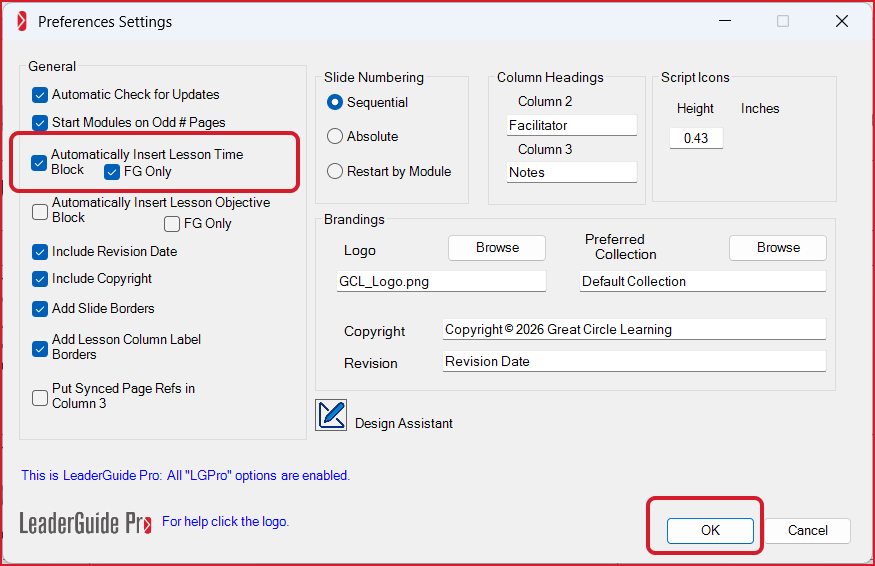
If you choose not use the Lesson Time Blocks, you can set a Preference directing LeaderGuide Pro not to include them.
  • Click Parts > LeaderGuide Pro Preferences on the LGPro ribbon.

  • Uncheck the boxes next to Automatically Insert Lesson Time Block and FG Only.

  • This will eliminate Lesson Time Blocks in all new Facilitator Guides that you create.

Column Headings

Column Headings only appear in Facilitator Guides, on the Lesson pages. 

The Column Headings let the Facilitator know what type of content is provided in cells two and three of the Content Blocks. 

The Column Headings carry across the top of every Lesson page, just below the Lesson name and above the start of column (cell) two and column (cell) three. 

Below are examples of the Column Headings with instructions on how to customize them.

Column Heading example on Lesson page

Lesson Page Column Headings

This is a three cell table row. 
  • On the first page of a Lesson you can manually edit the text in cells two and three by typing over it.

  • Do NOT type in the cell one empty space that sits above the icons.

  • Do NOT change the font or style of the Column Heading text.

  • Your changes will carry over to the subsequent lesson pages in just this Lesson as you build it out.

BUT manual editing has drawbacks ...

  • If you use the Continue Lesson function at some point, then all subsequent pages of that Lesson will revert to the default Column Headings and you will have to manually edit them. 

  • When you add New Lessons from the Text/Table Formatting group, those Lessons will display the default Column Headings and you will have to manually edit them. 

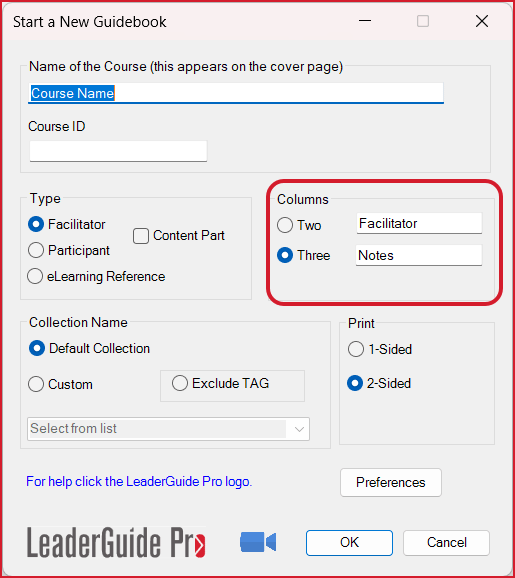
Column Heading Edit in Start Wizard

How to Edit the Column Headings when starting a New Guidebook

  1. After clicking New in the Start group you will see the Start a New Guidebook wizard.

  2. Use the space provided in the Columns section to edit the default headings of "Facilitator" for Column two and "Notes" for Column three. 

  3. This will change the Column Headings for just this new Facilitator Guide.

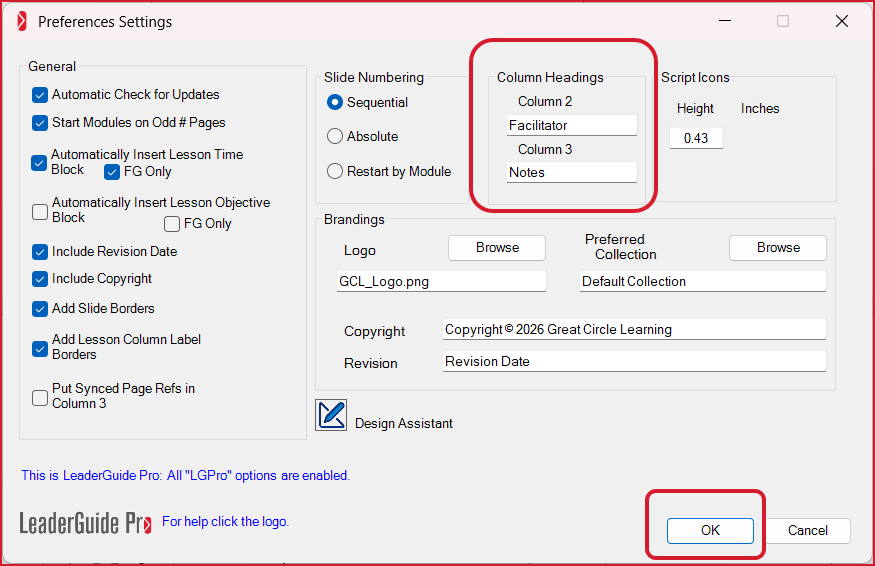
Edit Column Headings in Preferences

How to Edit the Column Headings for Every New Facilitator Guide

  1. Click Parts > LeaderGuide Pro Preferences on the LGPro ribbon.

  2. Make your edits in the Column Headings section of the Preferences wizard.

  3. Click OK in the lower right corner of the wizard to Save your changes.

Your edits will apply to all NEW guidebooks you create.
Text-Table Formatting group on LGPro Ribbon

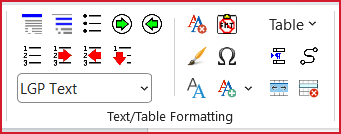
Text/Table Formatting Group

Use these buttons to format your Lesson content.

  • Hover your cursor over a button to see a screen tip telling you what the button does.

  • Place your cursor in a line of text or select multipe paragraphs and click the button you need. 

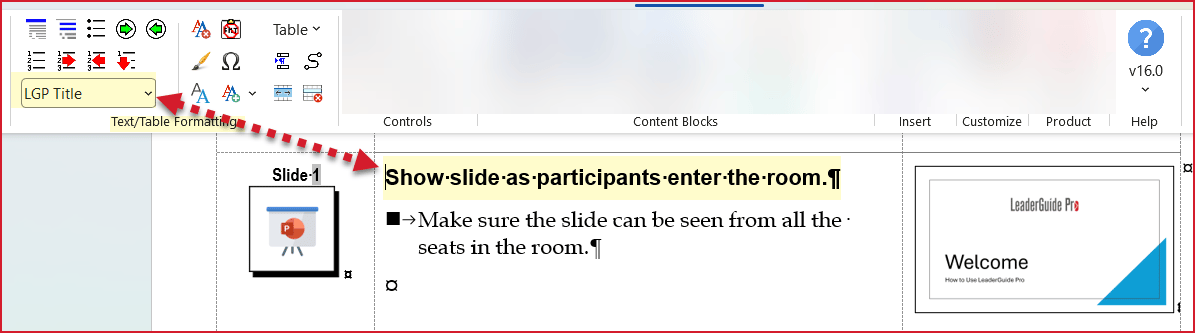
LGPro Styles_ribbon

Text Styles are Controlled by LeaderGuide Pro

To see the LGPro Style associated with text in your document:
  • Place your cursor in the text.

  • Look at the style listed in the Style box in the Text/Table Formatting group.

Styles play an important role in your LeaderGuide Pro documents.

  • To change the icons or the fonts, choose a different Collection.

  • Do not delete or change the icons in cell one.

  • Do not manually change the fonts or style of the text in cell two.

Moving and Deleting Blocks

Content Blocks are table rows.

To delete a Block:
  • Place your cursor in the Block and click Delete Table Row in the Text Table Formatting group.

You can move a Block:
  • To a different spot on the page where it is currently sitting.

  • To the top of the next page.

  • To a different page entirely.

Where you are moving the Block to determines HOW you will move it.
  • To move a Block to a different spot on a page, simply use the Up and Down arrows in the Content Blocks group.

  • To move a Block to the top of the next page, use the Continue Lesson function in the Module Lesson Control group.

  • To move a Block to a different page, follow our Copy & Paste protocol.

  • NEVER copy and paste just a Block icon.

Learn how to Move or Delete Blocks below.
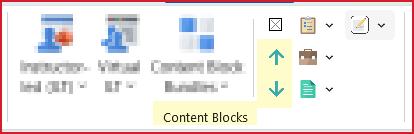
Move Blocks Buttons in Content Blocks group

To Move a Block to Different Spot on a Page:

  • Place your cursor in the Block you need to move

  • Click the Up or Down arrow in the Content Blocks group.

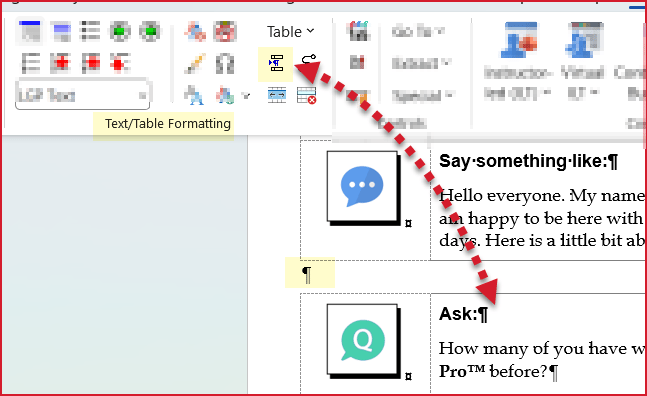
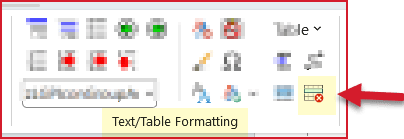
Break Table

To Move a Block to Another Page

  • Copy the Block.

  • Go to the new location.

If there are Content Blocks on the page:
  • Place your cursor in the Block that will come immediately after the Block you are about to paste in.

  • Click Break Table in the Text/Table Formatting group.

  • Place your cursor next to the Paragraph Mark you will see.

  • Paste into the new position.

  • Delete the Paragraph Mark to bring the Lesson Table back together.

If the style of the LGP Text in your Content Block changes to LGP Title after you paste:
  • Place your cursor in the text and click LGP Text in the Text/Table Formatting group.

Now, go back and remove the block from it's original position:
  • Go back to the pasted Block's original location.

  • Place your cursor in the Block.

  • Click Delete Table Row in the Text/Table Formatting group.

Available Paragraph Mark

To Move a Block to a Spot below Existing Blocks

  • Place your cursor by a Paragraph Mark that is sitting on the page outside of a Block.

If you are on a New Lesson page that has a Time Block and then a Page Break:
  • Do NOT place your cursor next to the Page Break.

  • Do NOT delete the Page Break.

If you do not see an available Paragraph Mark:
  • Place your cursor next to the Page Break and hit Enter on your keyboard.

  • You will now see a Paragraph Mark above the Page Break.

  • Use that Paragraph Mark.
Delete Table Row in Text-Table Formatting group

To Delete a Content Block

Because you are working with a Table Row ...

Word's Delete function is not enough. Instead:

  • Place your cursor in the Block you want to remove.

  • Click Delete Table Row in the Text/Table Formatting group.

FYI:
  • Using Word's Delete function will remove the content in the Block, but it will not remove the Block itself.

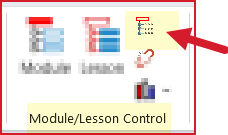
Continue Lesson

To Move a Block to the Top of the Next Page

  • Place your cursor in the Block you want to move.

  • Click Continue Lesson in the Module/Lesson Control group on the LGPro ribbon.

This will:

  • Add a Page Break to the current page.

  • Move the Block your cursor is in, and any Blocks that come after it, to the next page.

  • And, the Lesson Name on the next page will now read: "Lesson Name, continued"

Flow a Content Block

Content Blocks are use to chunk your instruction to make it easy to follow and manage. 

And Content Blocks are set to move over to the top of the next page if there is not enough room on the current page to hold all of the Block's content.

If a Block moves to the next page and leaves too much room on the prior page:

  • You can use the Flow Table function to allow the Block to start on the original page and flow it's content over to the top of the next page.    

Once you use the Flow Table function in a document:

  • Subsequent Blocks will also flow over pages for you.

Flow Table button in Text-Table Formatting group

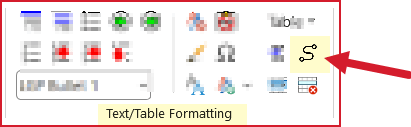
Flow Table

To allow a Content Block to start on one page and flow over to the next page:

  • Place your cursor in the Block.

  • Click Flow Table in the Text/Table Formatting group on the LGPro ribbon.

ICues and Time 

ICues are small instructional icons and brief text cues that can be added to any Content Block.

Time required to complete the Block instructions or activity can also be added.

The ICues menu is set to appear automatically when you are working in a Facilitator Guide or Participant guide.

  • To change this click Parts>Preferences and then Design Assistant.

To open the ICues from the LGPro ribbon.

  • Click ICues in the Insert group

To add an ICue into a Content Block:

  • Place your cursor at the spot you want the ICue to sit in cell two or three of the Block.

  • Click the ICue you want.

  • Do NOT add ICues into cell one.

To add Time to a Content Block:

  • Place your cursor anywhere in cell two or three of the Block.

  • In the ICues menu, type in a time in minutes into the white box next to the clock.

  • Click the Clock. Your time will appear below the Block icon in cell one.

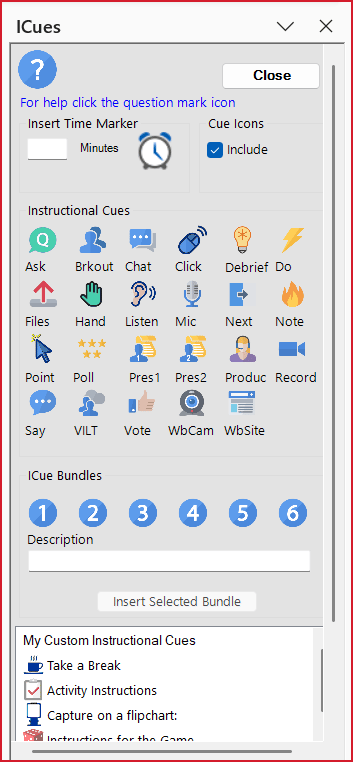
ICues pane