


Software Management
How to Activate Learning Design Tool
Quick steps to activate Learning Design Tool with your license key.
Activation
License Key
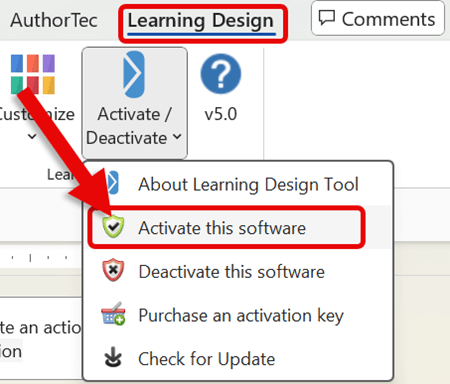
1. Open Microsoft Word to Access Learning Design Tool.
- Click on Learning Design Tool on the Word ribbon
- Click on Act'n DeAct on the Learning Design Tool tab
- Select Activate this software from the drop-down menu
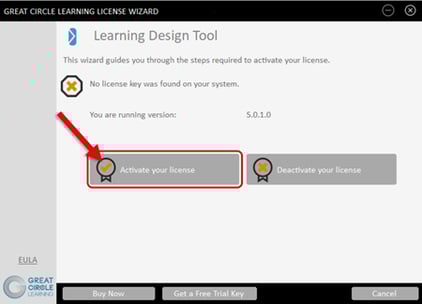
2. This will launch the Great Circle Learning License Wizard.
- Click the Activate your license button
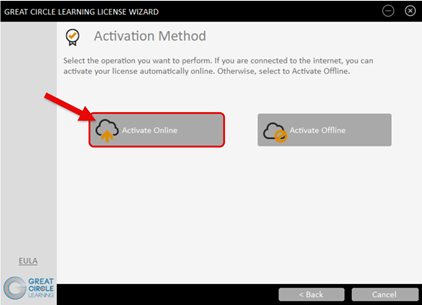
- Click the Activate Online button
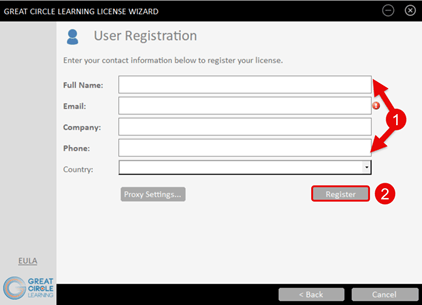
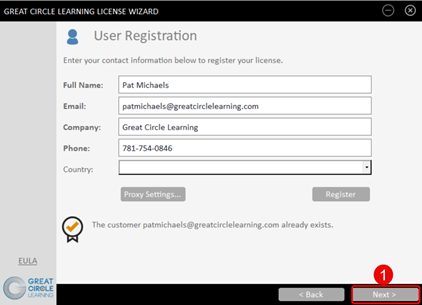
3. Complete the User Registration Form
- Fill out the user information prompts
- Click the Register button
4. The User Registration Dialog Box Updates.
- Click the Next button
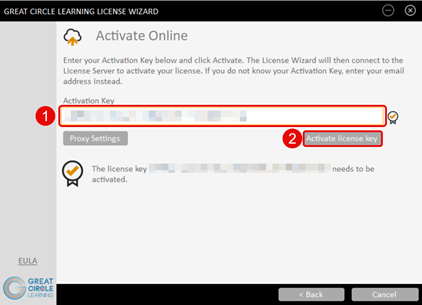
5. Enter the Activation Key for Learning Design Tool.
- Paste in the Activation Key for LeaderGuide Pro
- Click the Activate License Key button
6. The License Key Wizard Updates.
- Click the Finish button
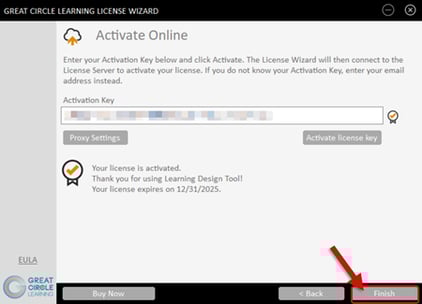
Learning Design Tool is now activated on this specific computer system. You can always deactivate the software to use it on a different computer.