
Skip to the main content.
Column Headline
Column Headline
LeaderGuide Pro
Learning Design Tool
Column Headline

Get to Know Your New Design Document

Your new Learning Design document contains eight pages

Take a moment to understand what you have as a starting point after creating a new Learning Design document.

IMPORTANT: Do not turn off Word's formatting marks while working in your new Learning Design document.

 
Your new Learning Design document contains these eight pages:
  1. Cover page

  2. Acknowledgements page

  3. Table of Contents

  4. Intentional Blank page

  5. Content Analysis page

  6. Instructional Analysis page

  7. Instructional Strategies page

  8. Course Structure and Sequencing page


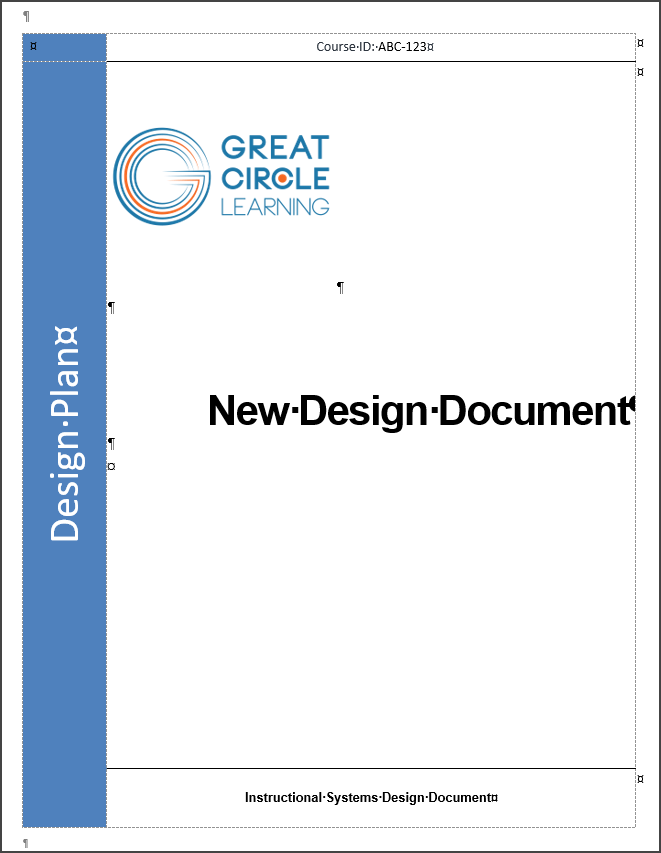
Cover page

The Cover page contains:

  • Course ID

  • Logo

  • Learning Design title

    • Edit the title on this page and it will update in the page headers  

  • Document Identifier

  • And anything else you may add to a custom cover page

And you will notice:

  • Word’s formatting marks are on

  • Tables are in use on most pages

 
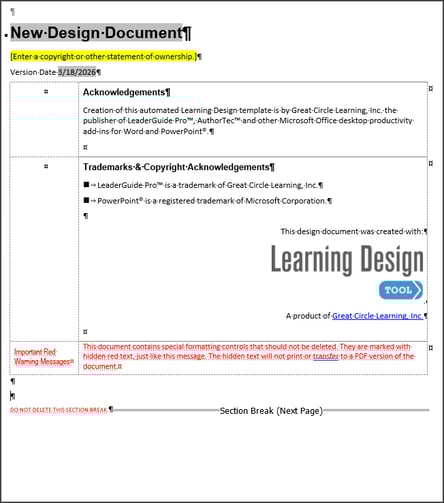
Acknowledgements page

Do not delete this page. It contains:

  • Document Title

    • In a field that picks up the title on your Cover page

  • Copyright placeholder

    • Type in your information

  • Version Date

    • In a field that repeats in the even-numbered page headers

    • Edit the date on this page and it will update in the page headers

  • Table with three rows

    • You can edit rows 1 and 2

    • Do not delete or type in row 3

  • Non-printing RED Text

    • Do not delete or alter this non-printing text

  • Section Break

    • Do not delete this section break

 
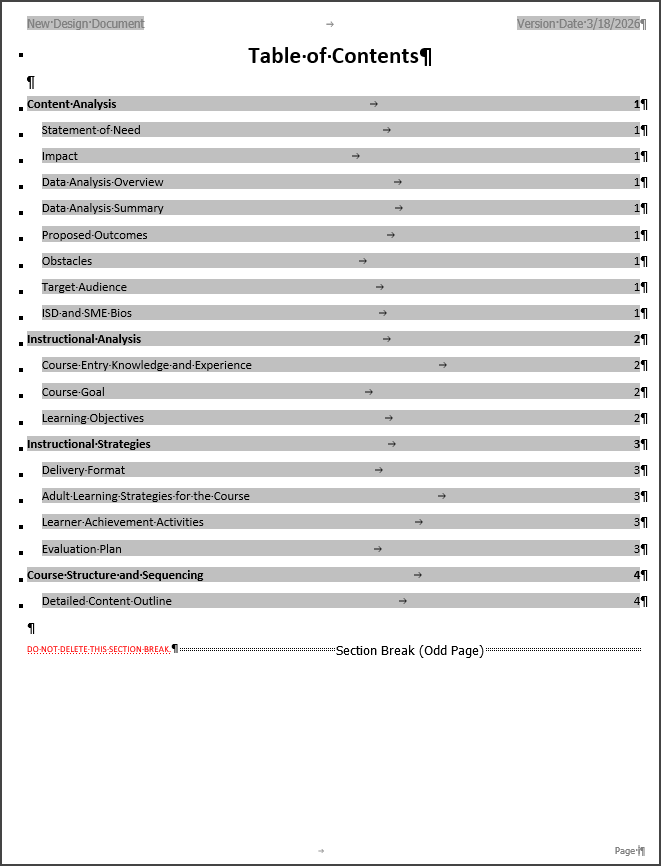
Table of Contents

Do not alter or type on the Table of Contents page. 

The Table of Contents displays:

  • Page Header showing the document title and version date

  • Page Name

  • Topics

  • Subtopics

  • Red Text and Section Break

  • Page numbers that link to the pages

To edit what this page displays:

  1. Edit the heading text on the actual pages

  2. Click Update All Fields on the Learning Design Tool ribbon

 
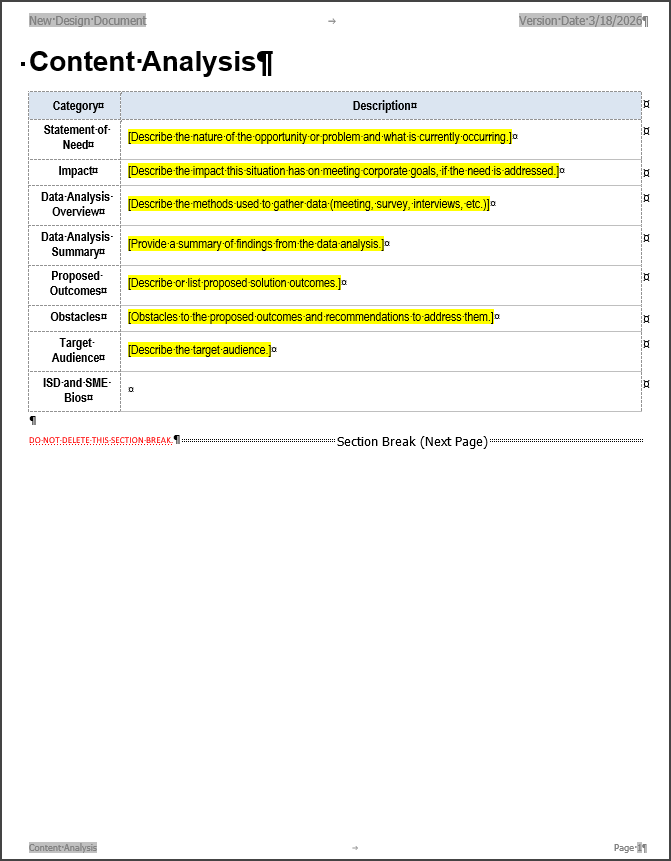
Content Analysis page

The Content Analysis page holds information from your Needs Analysis, including the:

  • Topic Name

  • Content Analysis Table

  • Placeholders for Content Analysis data

    • Data can be imported by clicking Import Analysis Data on the Learning Design Tool ribbon

    • Or you can type information into the form

  • Non-printing red text and Section break

    • Do not delete

 
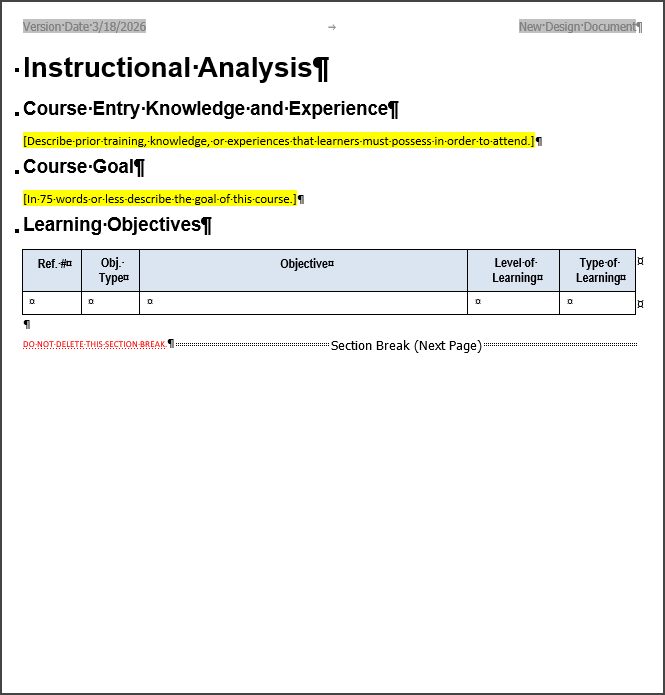
Instructional Analysis page

 The Instructional Analysis page guides you through adding the following: 

  • Course Entry Knowledge and Experience

    • Placeholder for you to type in Course Entry requirements

  • Course Goal

    • Placeholder for you to type in the Course Goal

  • Learning Objectives

    • Placeholder table for Learning Objectives data

    • Click Learning Hierarchy on the Learning Design Tool ribbon to automate the crafting of your learning objectives and the

      • Objective type

      • Level of  Learning

      • Type of Learning

  • Non-printing red text and Section break

    • Do not delete

 
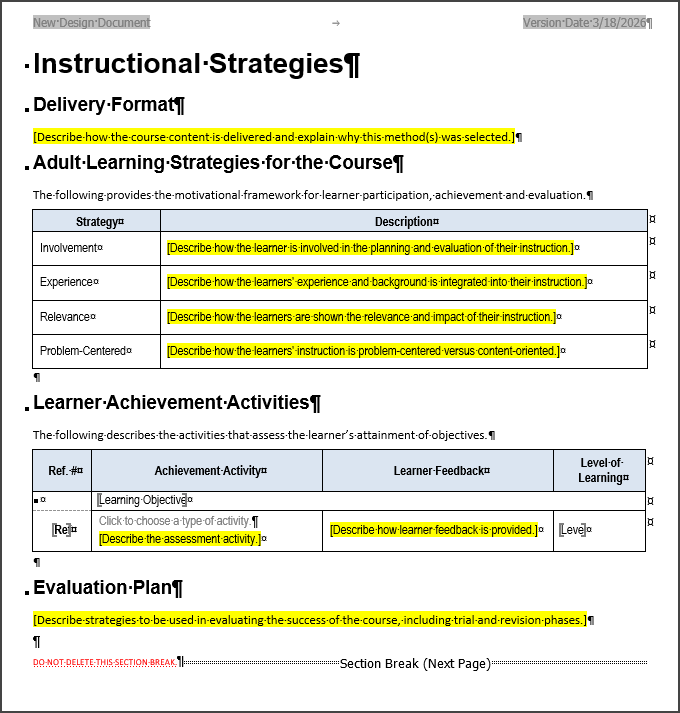
Instructional Strategies page

The Instructional Strategies page guides you through adding the following:

  • Delivery Format

    • Placeholder for you to type delivery format information

  • Adult Learning Strategies for the Course

    • Adult Learning Strategies data table

    • Placeholder with a cognitive prompt - for you to type data

  • Learner Achievement Activities

    • Learner Achievement Activities table

    • Click Learner Achievement on the Learning Design Tool ribbon to add content to this table

  • Evaluation Plan

    • Placeholder for you to type in the evaluation plan

  • Non-printing red text and Section break

    • Do not delete

 
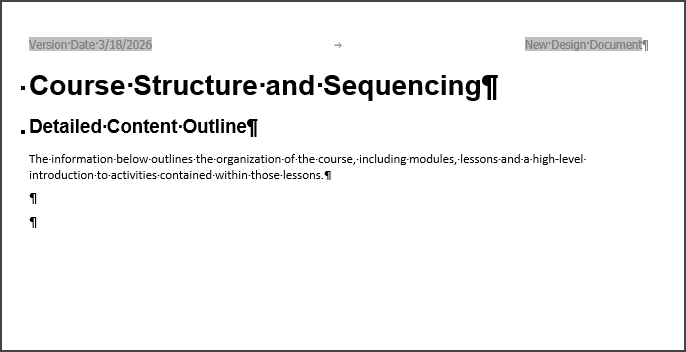
Course Structure and Sequencing page

The Course Structure and Sequencing page:

  • This page is placeholder for your Detailed Course Outline

  • Click Course Outline on the Learning Design Tool ribbon to generate your outline