


Basics
Starting a Guidebook from PowerPoint
Either a Facilitator Guide or a Participant Guide

Step One: Get your PowerPoint file ready
-
Save a copy of your PowerPoint file to your local drive
-
Open and minimize the file
-
Close any other open PowerPoint files
Avoid doing this work in SharePoint or OneDrive
-
LeaderGuide Pro works most efficiently for you when the files you are using are stored locally in the Documents folder on your local drive
-
SAVE a copy of your work to you shared drive, but work locally when using LeaderGuide Pro
TIP: Start by creating a Test file or two
-
Save a copy of a small PowerPoint file (10-12 slides with notes) to your local drive
-
Open it and minimize it
-
Follow the steps below, creating a "Test" guidebook
-
Take a look at the slides and notes placement you chose
-
Repeat once or twice more - trying the different placement options for slide and notes - and even bringing in the slide text
-
Then repeat with your full PowerPoint file using the placement options you prefer
Step Two: Initiate the start of a new Facilitator Guide or Participant Guide
-
Open Microsoft Word
-
Click the LeaderGuide Pro tab along the top of your screen
-
Click the NEW button at the far left end of the LeaderGuide Pro ribbon
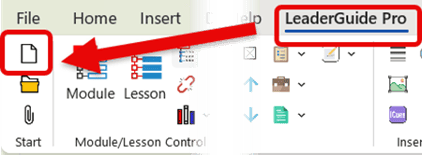
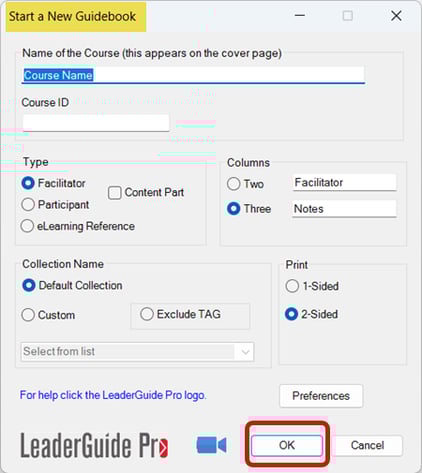
This will launch the Start a New Guidebook wizard
-
Use the wizard to set up your new guidebook
-
Click OK to continue
Step Three: SAVE your new Guidebook
-
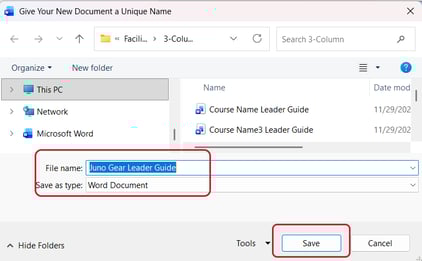
You will be taken to your local LeaderGuide Pro Library folder
-
We recommend you Save to this location
Step Four: Add your course outline with the Guidebook Design Template
-
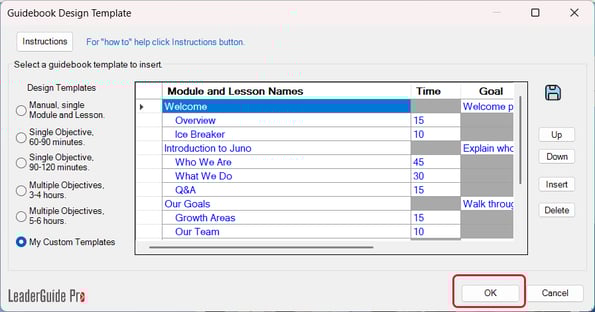
Select one of the provided outlines of Modules and Lessons
-
Edit the Module and Lesson names as needed
-
Click OK to add your Modules and Lessons into your new guidebook
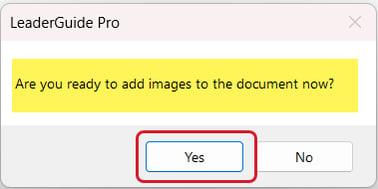
Step Five: You will be asked if you are ready to add images (PowerPoint)
- Click Yes
Step 6: Select the PowerPoint file to import
-
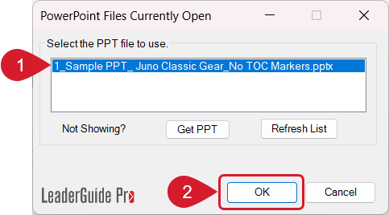
Select the PowerPoint file showing in the white box
-
If you have more than one PowerPoint file open, select the one you need to import - they will all be showing
-
If your PowerPoint file is open but you do not see it in the white box click Refresh List
-
If your PowerPoint file is not open click Get PPT to navigate to the PowerPoint file you want to import
-
-
Click OK
FYI: About your options for the placement of your slide images and slide notes
-
Your Slide images and slide notes (if you choose to include them) will be imported into a PPT Content Block
-
If you are working in a 3-column document (a choice you make as you start your new guidebook) then you can import your slides into:
-
Column 1 as a thumbnail
-
Column 2 as a larger image
-
Column 3 as a smaller (but bigger than a thumbnail) image
-
-
Depending on where you place your slides, Column 2 or 3 will be available to hold your slide notes
-
Slide notes are never added to Column 1
-
FYI: About Content Block Columns
-
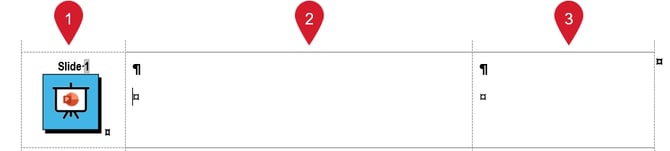
Column One is 1.2 inches wide
-
This where the LeaderGuide Pro icons normally sit, but you can use this spot to hold thumbnail images of your slides
-
-
Column Two is 4 inches wide
-
This location can be used for text or images
-
-
Column Three is 2.1 inches wide
-
This location can also be used for text or images
-
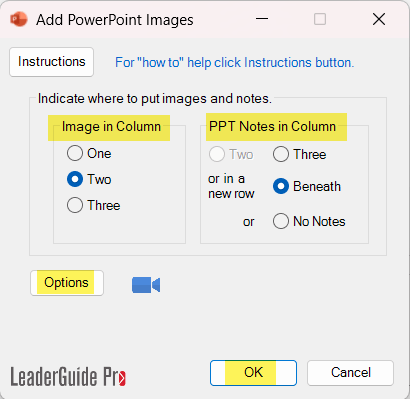
Step Seven: Select where you want your slides and notes to sit on your Lesson pages
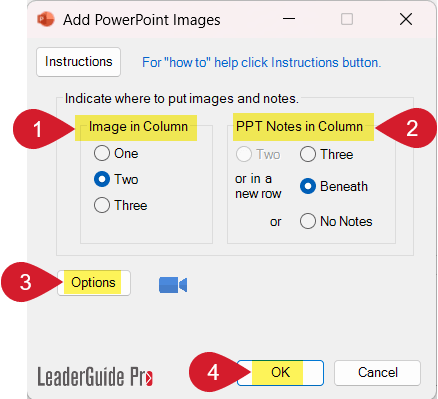
-
Select the column to place your slide images in
-
Select where to place the slide notes, if you want to import them
-
Click Options for additional choices
-
See more about Options immediately below
-
-
Click OK and take your hand off your mouse
FYI: About Options - Advanced PowerPoint Import Settings
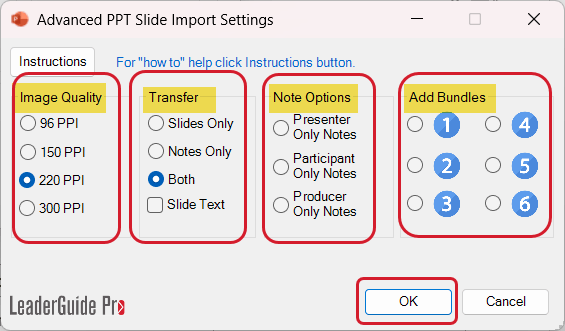
Use the Options dialog box to fine tune:
-
Image Quality - 220 PPI is best if you will be printing your guidebook
-
Transfer - you can import the TEXT that is on your slides as text - so that you can work with it
-
Note Options - this option is tied to marking your PowerPoint file with george! which is included in our AuthorTec suite of Word & PowerPoint productivity tools
-
Add Bundles - Bundles are custom clusters of LeaderGuide Pro Content Blocks that you can set up to save time and ensure consistency
After adjusting any of these settings:
-
Click OK
-
You will see the Add PowerPoint Images dialog again
-
Click OK
-
Hand off mouse while your slides (and notes if selected) are set up to be imported
-
Your screen may jump and flash - this is normal
-
Step Eight: Assign your slides (and notes) to Lessons
Slides must be assigned to Lessons
-
Select the first Lesson that includes slides
-
Select the slides to add into the Lesson
-
Click Assign
-
Repeat steps 1 - 3 until all of the slides you want to import are assigned
-
You do not have to import every slide
-
-
Click Done when - well ... done
-
Hand off mouse while the slides are added to your new guidebook
-
Your screen may jump and flash as LeaderGuide Pro works to finish the import of your PowerPoint File - this is normal
-

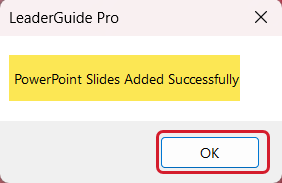
When the PPT Import is complete:
-
You will see this message
-
Click OK
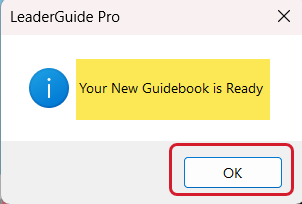
Next: You will see one last message
-
Click OK
-
You will now see the Cover page of your new Facilitator Guide or Participant Guide on your screen
Your new Facilitator Guide or Participant Guide is now ready for you to start working in
-
Take a look through the pages to see what you have just created
FYI: Here is an example of what you will see on your Lesson pages
-
If you choose the placement option Slides in Column 2 and Notes below

-
Column 1
-
always contains a LeaderGuide Pro icon
-
unless you choose the option to place slide images in column 1
-
-
Column 2 can hold:
-
slide images
-
or other types of images
-
or text in the form of a bold headline followed by body text - as shown in the PowerPoint Notes Block
-
-
Column 3 can hold:
-
smaller images
-
or additional text with messages for the Instructor or Producer only
-
Columns 1 - 3 sit within a Content Block
-
A Content Block begins with an icon to visually cue a facilitator
-
The icon is followed by a call to action headline and concise text
-
And then there may be additional information or direction for the facilitator or producer
TIP: Don't fret about the "extra stuff" you see on your guidebook pages
-
LeaderGuide Pro shows Word's formatting marks
-
Formatting marks are non-printing characters that show spaces, tabs, paragraph breaks and more
-
Formatting marks help you create professional documents
Learn About
-
Image Quality
-
Notes Options
-
Content Blocks
-
Bundles
-
Formatting marks in Word
Next Steps
-
Get to Know Your New Guidebook
-
Add Module information
-
Add Lesson Content