


Basics
Set Your Preferences
Easy Ways to Customize LeaderGuide Pro

Overview
LeaderGuide Pro is highly customizable
This makes it easy to produce branded facilitator guides and participant guides.
-
22 Preference options are easily made with a mouse click!
-
Once set, your preferences automatically apply - saving you time and ensuring consistency
-
And of course your preferences are just as easy to update
Many additional customizations can be made, with a bit more effort and a solid understanding of both LeaderGuide Pro and Word.
-
Use our Knowledge Base and Courses to learn more
-
And feel free to contact Great Circle Learning for assistance
Easy Preferences to Set
Use the Preferences Wizard
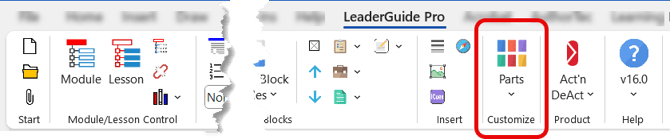
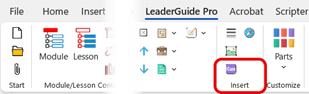
Click the Parts button on the LeaderGuide Pro ribbon to open the Preferences Wizard
-
Click Parts to open a drop-down menu
-
Select LeaderGuide Pro Preferences to open the Preferences Wizard
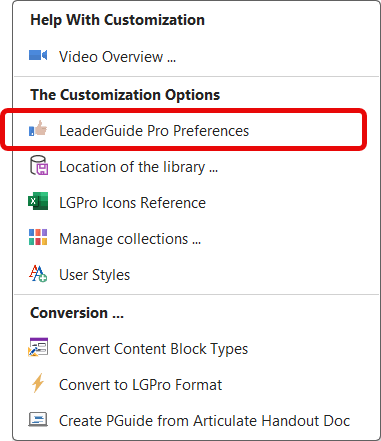
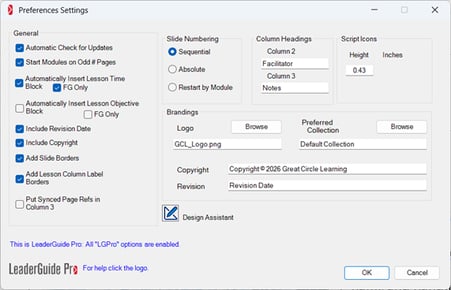
The Preferences Wizard Explained
There are six groups of Preference options available to you in the Preferences Wizard.
-
The preferences you set will apply to NEW guidebooks that you create - they will not impact existing guidebooks
-
You can change your preferences at any time, as needed
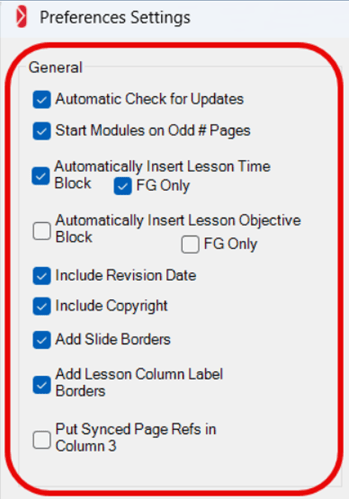
#1 General Preferences
|
|
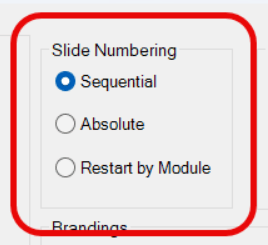
#2 Slide Numbering
|
Sequential
Absolute Use Absolute if ...
Restart by Module
FYI
|
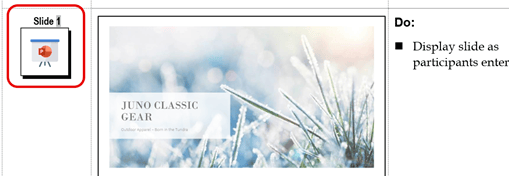
Do Not Manually Alter the Slide Numbers inserted by LGProManually changing the slide numbers will:
|
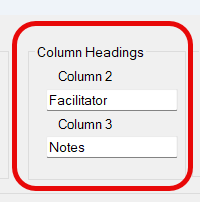
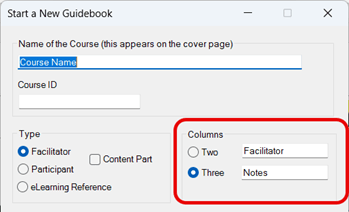
#3 Column Headings
|
Column Headings
|
#4 Script Icons
|
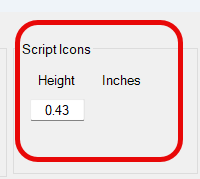
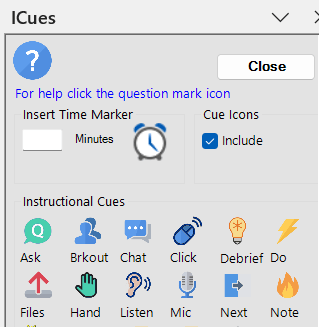
Script Icons These are smaller, optional, Instructional Cue icons that you can insert into columns 2 or 3 of the Content Blocks on your Lesson pages
If you change the ICue icon height to less than 0.25 inches (0.635 cm)
|
Do Not Insert ICues into Column 1 of a Content Block

|
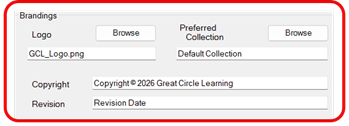
#5 Brandings
|
Logo
|
|
|
Preferred Collection
|
|
|
Copyright
|
|
|
Revision
|
#6 Design Assistant
|
Click Design Assistant to open the Design Assistant task pane
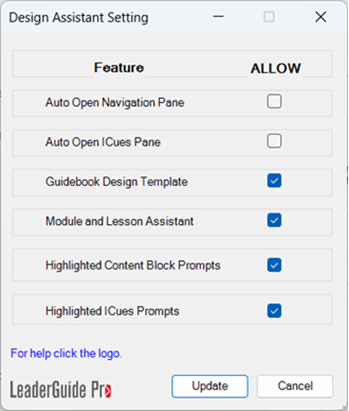
AUTO OPEN NAVIGATION PANE AUTO OPEN ICUES PANE GUIDEBOOK DESIGN TEMPLATE MODULE AND LESSON ASSISTANT HIGHLIGHTED CONTENT BLOCK PROMPTS HIGHLIGHTED ICUES PROMPTS |
|
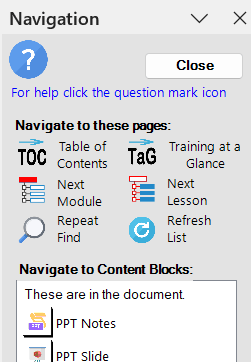
AUTO OPEN NAVIGATION PANE
|
|
|
AUTO OPEN ICUES PANE
|
|
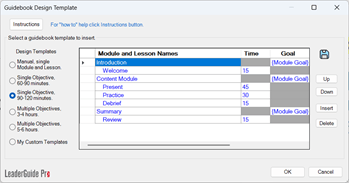
GUIDEBOOK DESIGN TEMPLATE
The Guidebook Design Template provides:
If you choose to disable this option:
|
|
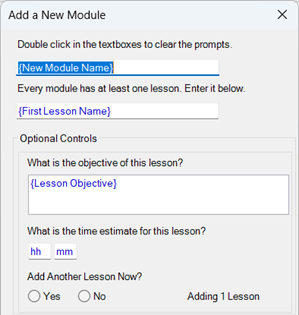
MODULE AND LESSON ASSISTANT As you add a New Module into your guidebook, this option allows you to also add:
This can save a great deal of time. |
|
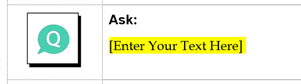
HIGHLIGHTED CONTENT BLOCK PROMPTS
|
|
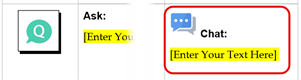
HIGHLIGHTED ICUES PROMPTS
|