
Troubleshooting
How to Access AppData Folder in File Explorer
A step-by-step guide to locating and accessing the hidden AppData folder in Windows to manage user-specific application settings and files.
Windows
General Information
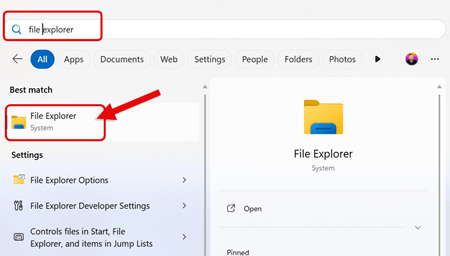
1. Open File Explorer in Microsoft Windows
-
Search for File Explorer in the Windows Taskbar and Click to Launch
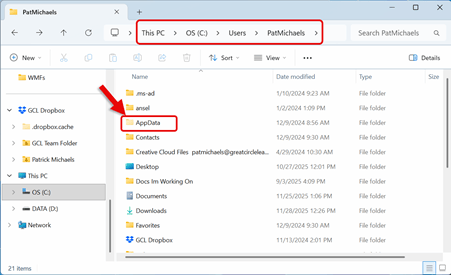
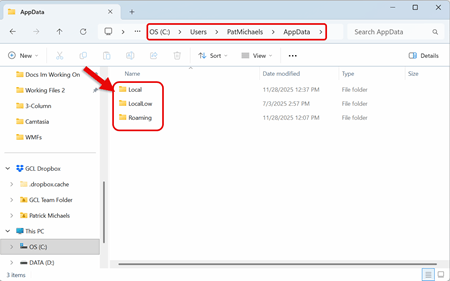
2. Navigate to: This PC > C: Drive > Users > "YourUserName" > AppData
The AppData folder in Windows stores user-specific data, such as application settings, configuration files, caches, and temporary files.
-
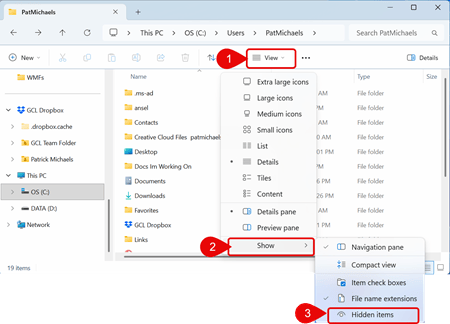
By default, this folder is Hidden by Microsoft Windows