NOTE:
AuthorTec must be installed on your computer. It is not cloud-based.
Getting Started
- Make sure Microsoft Word is closed on your system
- Download AuthorTec to your computer by completing the form
- Choose 64-bit or 32-bit download
- Click here to tell which version you need
- Choose 64-bit or 32-bit download
- Go to your Downloads folder and look for either:
- AuthorTec_5x64Installer
- AuthorTec_5x32Installer
- Click on the install file to add AuthorTec to your computer
Follow the Prompts on the Installation Wizard.
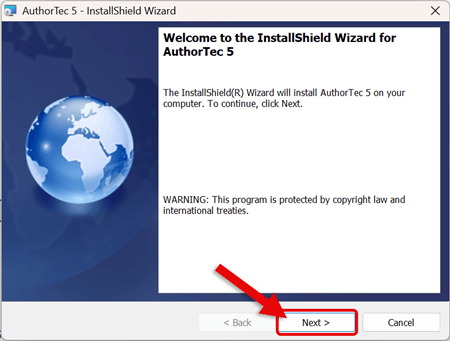
- Click Next to start the installation process
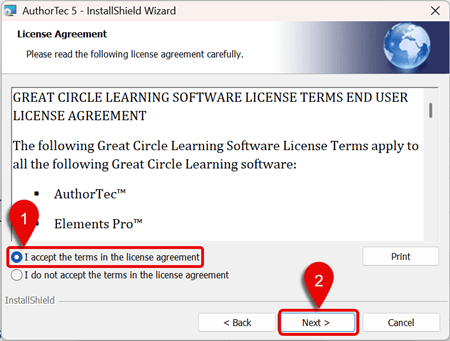
- Read and Accept the Terms of the End User License Agreement (EULA)
- Click Next
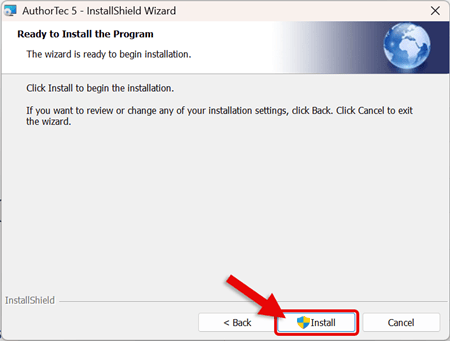
- Click Install
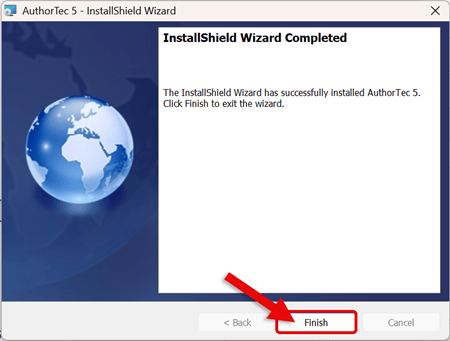
- Click Finish to close out the Installation Wizard
Open Microsoft Word
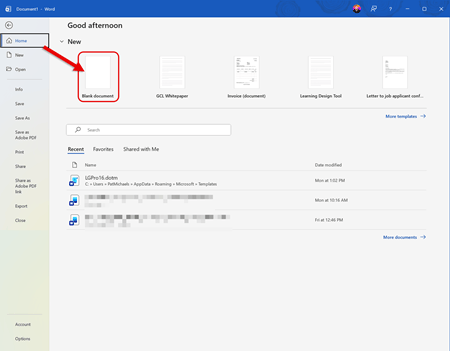
- Go to the Home Tab and select Blank Document

- On the Word Ribbon, AuthorTec will now appear
- AuthorTec is now installed on your computer.
Next Steps
Learn About
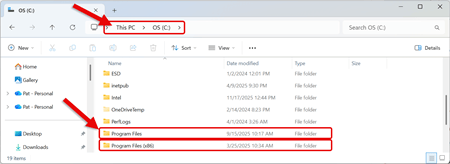
How to tell if I need the 64-bit or 32-bit install file:
- Open File Explorer
- Navigate to: This PC > C: Drive
- Look for the following folders:
- Program Files
- Program Files (x86)
- Choose 64-bit if you have both Program Files & Program Files (x86)
- Choose 32-bit if you have only Program Files