
Overview
The LeaderGuide Pro Styles play a critical role in supporting the functionality LeaderGuide Pro provides.
The LGP Styles in your Facilitator Guides and Participant Guides:
- make these documents professional, consistent and easy to manage
- apply automatically, freeing you from spending time doing tedious formatting by hand
The LGP Styles work hand in hand with the LeaderGuide Pro code to:
- Support key LeaderGuide Pro functions
- Ensure consistent formatting
- Enhance readability
- Make document navigation possible
- Allow for global style changes with a mouse click
- Make the documents easy to edit, update, and repurpose.
Why the LeaderGuide Pro Styles Matter
Support key LeaderGuide Pro functions
⭐LeaderGuide Pro needs the LGP Style names to do its work:
-
to set up the documents and maintain consistency as they are built out
- to import slides and notes and images
- to extract content from one guidebook to another
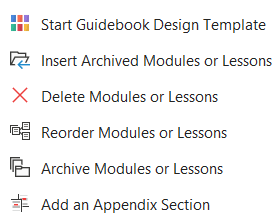
- to archive, insert, reorder and delete Modules and Lessons
- and more
Consistent Formatting
⭐ Consistent formatting helps your instructors and participants:
- engage with the material
- regard the material as credible
- easily navigate the material
Readability
⭐ The LGP Styles enhance readability by:
- controlling consistency of fonts, paragraph spacing, and pagination
- creating a clear visual hierarchy
- making content easier to scan, process, and understand
Document Navigation
⭐ The LGP Styles enhance navigation by:
- Applying heading styles that support navigation from the Table of Contents, Training at a Glance, and the Go To function
- Applying unique Content Block styles to support navigation to specific block types
Global Style Changes
⭐ The LGP Styles make global style changes possible when using:
- LeaderGuide Pro Collections
- Convert Content Blocks
- Show/Hide Icons
- Remove Knowledge Check Answers
Easy to edit, update, and repurpose
⭐The LGP Styles make it possible to:
- Use the Librarian function to
What this means for you as a LeaderGuide Pro user
⌚⌚⌚Save time
💰💰💰💰Save money
🐈🐈⬛🐱🐈⬛🐈Herd the cats
🦆🦆🦆🦆🦆Get your ducks in a row
👏🏽👏🏽👏🏽👏🏽👏🏽👏🏽Earn praise and thanks
In other words ...
Once you start a new Facilitator Guide or Participant Guide
All you need to do is add content.
Formatting, page layout, document structure, pagination, Table of Contents, headers and footers are all taken care of automatically.
📍TIP: Use the included Customize functions to make style changes
This ensures that the LeaderGuide Pro functionality remains in place
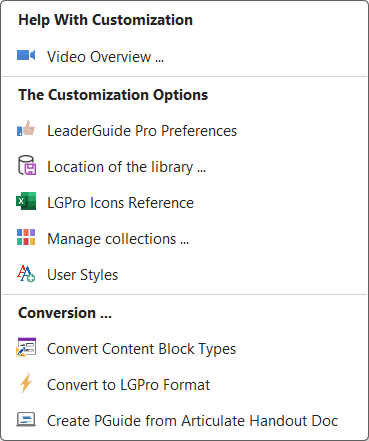
Click the Parts>Customize button on the LeaderGuide Pro ribbon to access the customizing functions
Key LGP Styles
Here are some of the LGP Styles you will be working with when building a Facilitator Guide or a Participant Guide
| LGP Program Name | On the Cover page and repeated in various spots |
| LGP Module Name | On the first page of a new Module and repeated in the header |
| LGP Lesson Name | On the first page of a new Lesson and repeated on the subsequent Lesson pages |
| LGP Title | The first line of text in a Content Block, in a bold font to stand out as a call to action headline |
| LGP Text | Subsequent text in a content block in a normal font |
| LGP Bullet | Bulleted text |
| LGP Number | Numbered text |
| zLGP Icon {Icon Name} | Every Content Block Icon has a unique name |
📍TIP: To change the fonts or formatting of any of the LGP Styles
Open the Style Guide for the Collection you are using and make the changes in the Style Guide
This way you only have to make the changes once because they will automatically apply as you use your Collection going forward
And this preserves the LeaderGuide Pro functionality associated with the styles
⚠️ Do Not Manually Alter the LGP Styles
-
Even though it is possible to manually edit the styles, because LeaderGuide Pro documents are Word documents, please do not do this
- Manually altering the styles disables the LeaderGuide Pro functionality associated with the style and will cause issues as you try to use other LGPro functions - resulting in A LOT more manual work by you
Collections
LeaderGuide Pro provides a number of ready to use Collections as well as the ability to create custom Collections
A Collection is an intentional master grouping of the LGP Styles, Icons and "Guidebook Parts" to create a specific theme (look and feel) when applied to a Facilitator Guide or a Participant Guide.
📍Every Collection has the same LGP Style names & Guidebook Parts
-
But the attributes of the styles and parts can be different, resulting in different themed looks
Whether you use one of the included Collections or a Custom Collection
-
the resulting guidebooks you build will present a unified brand voice with consistent, professional formatting.
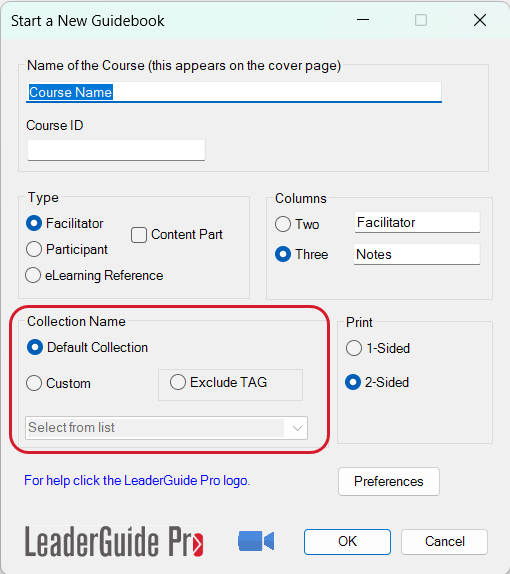
You select a Collection to use when you start a new guidebook.
Because every Collection includes the same LGP Styles, Icons and Guidebook Parts
-
You can instantly change the look and feel of a Facilitator Guide or Participant Guide by using the LeaderGuide Pro Attach function.

Collections ensure professionalism and offer these benefits:
Consistency: Provides uniformity in how your guidebooks look and sound
Brand Identity: Reinforces brand values, personality, and visual aesthetics, making the brand recognizable and credible
Clarity: Sets clear standards for document structure and organization, helping with readability and comprehension
Save Time & Resources: Streamlines content creation and reduces errors
Guides Content Creation: Details specifics like fonts, colors, logos, and icons
Aligns Teams: Gets developers and stakeholders on the same page, ensuring everyone adheres to the same standards
Learn More
About the LeaderGuide Pro Guidebooks
Facilitator Guide Walk-Through
Participant Guide Walk-Through
About Content Parts
About Content Blocks
About PowerPoint and LeaderGuide Pro