
Overview
When you install LeaderGuide Pro, two library folders are created in your Documents area to help you organize and manage your facilitator and participant guides:- LGPro Library Local (for personal work)
- LGPro Library Master (for shared team access)
Both folders use the same subfolder structure, making it easy to save, find, and reuse your learning materials.
Why Two Libraries?
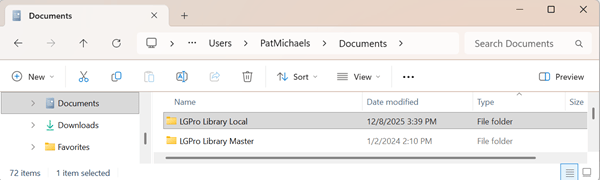
Local Library:
- Located on your hard drive for fast, lag-free authoring.
- Default location: C:\Users\YourUserName\Documents\LGPro Library Local
Network, shared, and cloud drives can introduce latency or lag that may slow down or interrupt certain LeaderGuide Pro functions.
You should always work from the Local Library when:
- Creating a guidebook
- Extracting a guidebook
- Adding, replacing, or importing PowerPoint slides
- Reordering Modules & Lessons
Master Library:
- Move this folder to a shared drive so your team can access the latest documents and maintain a consistent structure.
Standard Folder Structure
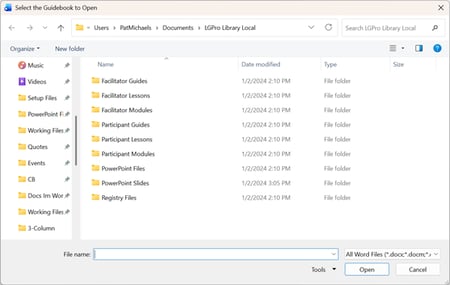
| Each library contains the following subfolders: | |
|
|
When creating a guidebook in LeaderGuide Pro, three of the choices you make will determine which library folder your document saves into by default.
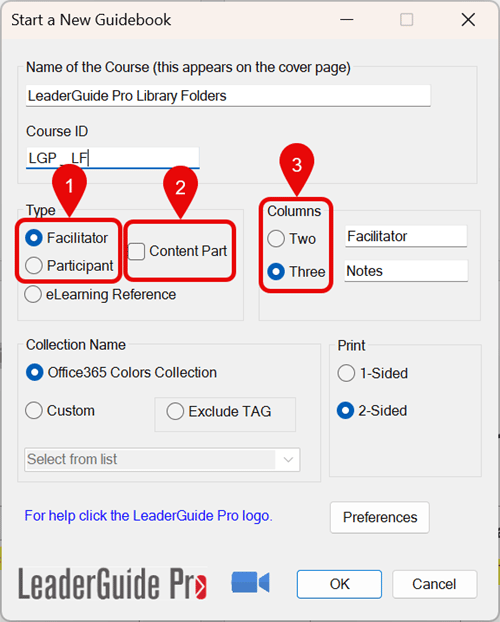
- Determines if the file is saved in the Facilitator or Participant folders
- Content Parts
- If not checked, the file is saved in the Guidebook folder
- If checked, the file is saved in either the Module or Lesson folder, depending on the type of content part built.
- Columns
- Two, the file is saved in the 2-Column Wide folder
- Three, the file is saved in the 3-Column folder
Key Benefits
- Performance: Work locally to avoid network or cloud lag.
- Consistency: Save final materials to the Master Library for team-wide access.
- Feature Support: Enables LGPro features like:
- Creating Content Parts
- Inserting Modules and /or Lessons
- Archiving Modules and /or Lessons
Best Practices
- Confirm that both library folders exist in your Documents folder.
- Move the LGPro Library Master to a shared drive for team access.
- Only one user needs to do this in an organization. Everyone else can delete the Master Library from their systems.
- Use the Local Library for drafting and building guides.
- Save final versions to the Master Library.
- Maintain the standard folder structure in both libraries.
- Use clear naming conventions for easy searching and archiving.
Next Steps
- Update the Location of the Library for the Master library.