
📚 What is a Content Part?
They are:
- focused chunks of content that address a topic or subtopic
- used to build a Facilitator Guide or Participant Guide.
A Content Part can be:
- A Module and its Lessons
- Just a Lesson
How to Create a Content Part
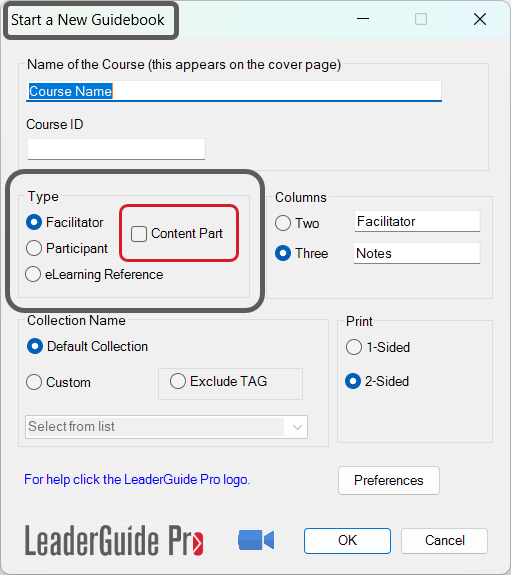
As you use the Start a New Guidebook wizard after clicking the New button on the LeaderGuide Pro ribbon, you will have the option to create either:
- a Facilitator Guide Content Part or
- a Participant Guide Content Part
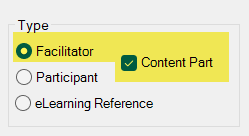
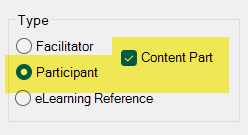
After selecting your Content Part Type, you will need to:
- complete the steps required to use the Start a New Guidebook wizard and
- click OK in the wizard to create your new Content Part
After you click OK
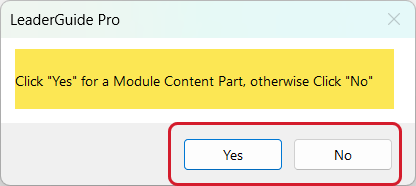
You will be given a choice to create either
- A Module and Lesson - Click Yes - or
- Just a Lesson - Click No
Hand off mouse after you click Yes or No
Next, you will be prompted to Save
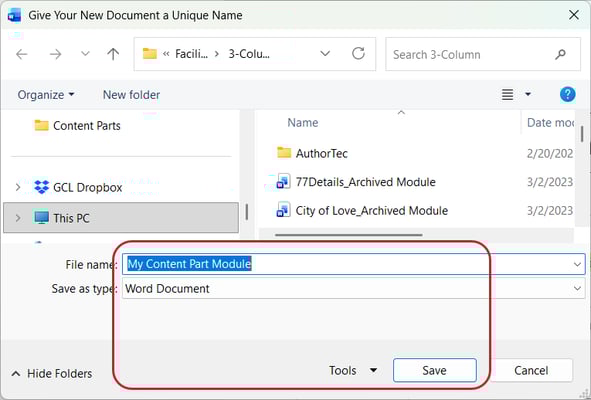
You will be prompted to Save your new Content Part into your LeaderGuide Pro Library Local
- We recommend that you Save to this location
- LeaderGuide Pro will default to this location to open the Content Part and when you are ready to insert it into a Facilitator Guide or Participant Guide
📍TIP: Save your new Content Part in a way that will make it easy to use
Save your Content Part in a new subfolder named for the Course or the Content Part it will help build
Start the file name of your new Content Part with a number to indicate where it fits within the outline flow of the course
Hand off mouse after you click Save
Next: You will see your new Content Part
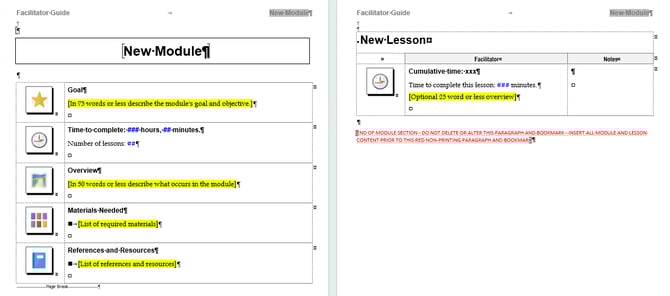
If you clicked Yes and you were creating a Facilitator Guide Content Part:
- you will see a New Module Page and a New Lesson page (shown above)
If you clicked No:
- you will only see a New Lesson page
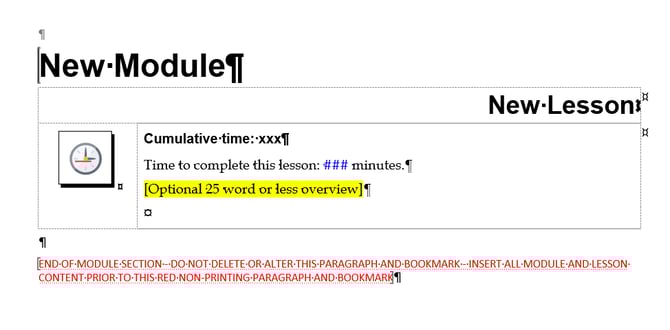
If you clicked Yes and you were creating a Participant Guide Content Part:
- you will see a New Module Name and a New Lesson Name on the same page (shown above)
If you clicked No:
- you will only see a New Lesson page
No matter which choices you made, you are ready to start working in your new Content Part
Learn About
- How to Use Content Parts
- Facilitator Guide vs. Participant Guide Content Part
Next Steps
- Import PowerPoint
- Get to Know your New Guidebook