
If you have a license key for LeaderGuide Pro: Click Here
Open Microsoft Word to Access LeaderGuide Pro.
When you open Word for the first time after installing LeaderGuide Pro, you’ll see a prompt to update your Normal template in Word and add new AutoCorrect entries.
You can accept or decline.
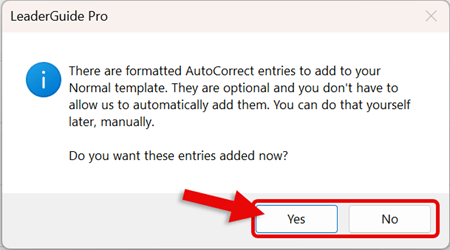
Navigate to the LeaderGuide Pro Tab
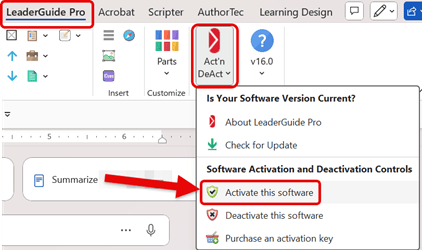
- Click on LeaderGuide Pro tab along the top of your screen in Word
- Click on Act'n DeAct on the LeaderGuide Pro ribbon
- Select Activate this software from the drop-down menu
The Great Circle Learning License Wizard Launches
If the License Wizard does not launch, read this to help troubleshoot:
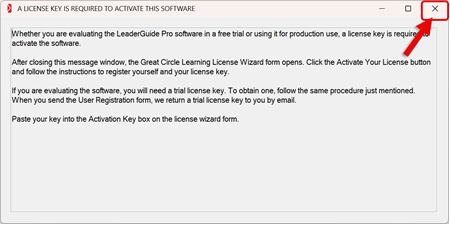
- Click on the X in the upper-right corner to close the informational dialog box
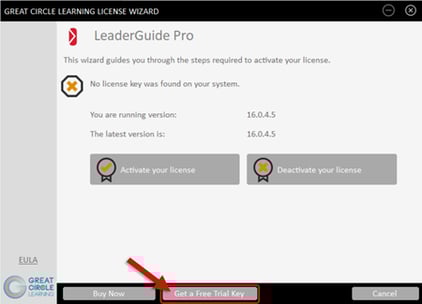
- Click the Get a Free Trial Key button
Complete the User Registration Form
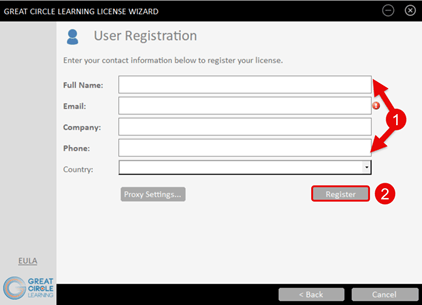
- Fill out the user information prompts
- Click the Register button
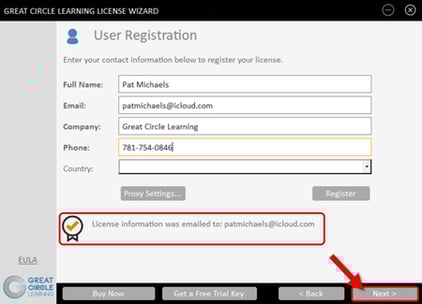
- The free trial activation key is emailed to the email address you provide
- Click the Next button
The email will come from info@greatcirclelearning.com
Make sure to check email and spam filter if you do not receive it.
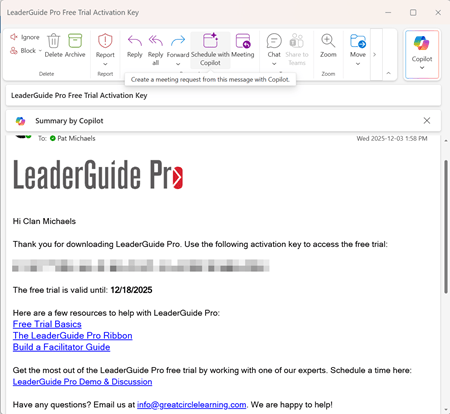
Please reach out if you do not receive it and it is not in an email filter
Enter the Activation Key for LeaderGuide Pro.
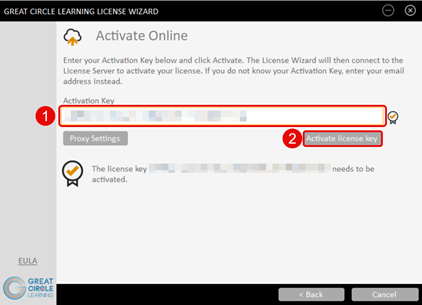
- Paste in the Activation Key for LeaderGuide Pro
- Click the Activate License Key button
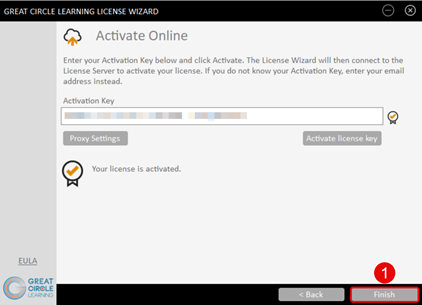
- Click the Finish button
Free Trial Restrictions & Acknowledgements
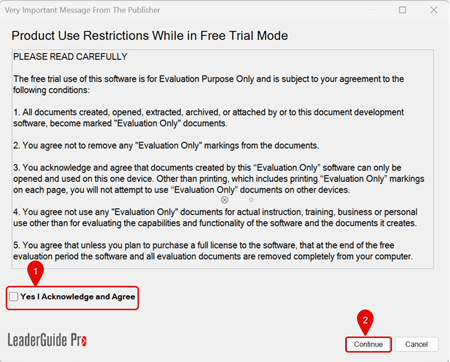
- Place a check mark next to Yes, I Acknowledge and Agree
- Click Continue
LeaderGuide Pro is now activated for free trial use on this computer.
Next Steps
- How to Start a New Guidebook with LeaderGuide Pro
- How to Open a Free Trial Document
- How to Share a Document Built with the Free Trial
Learn About
- About Free Trial Restrictions
- LeaderGuide Pro AutoCorrect Entries
- Activation Requirements for LeaderGuide Pro