
Open Microsoft Word to Access AuthorTec
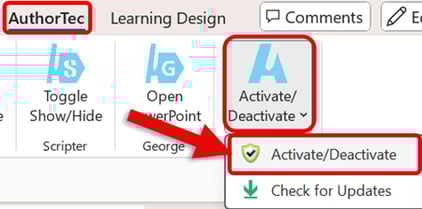
- Click on AuthorTec on the Word ribbon
- Click on Activate / Deactivate on the AuthorTec tab
- Select Activate / Deactivate from the drop-down menu
This Launches the Great Circle Learning License Wizard.
If the License Wizard does not launch, read this to help troubleshoot:
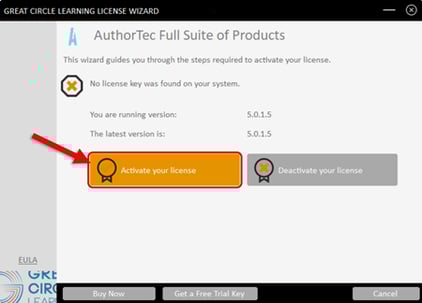
- Click the Activate your license button
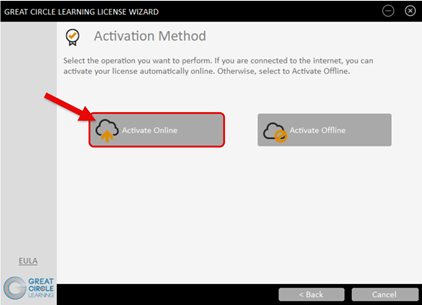
- Click the Activate Online button
Complete the User Registration Form
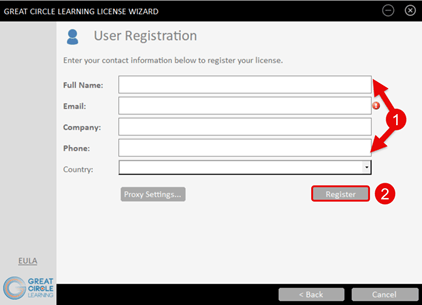
- Fill out the user information prompts
- Click the Register button
📍Your contact information may already be entered if you have activated AuthorTec previously
The User Registration Dialog Box Updates.
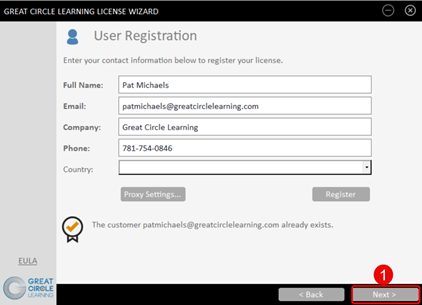
- Click the Next button
📍You may receive a message alerting you that the customer already exists.
Enter the Activation Key for AuthorTec.
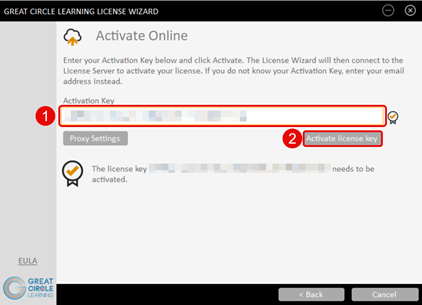
- Paste in the Activation Key for AuthorTec
- Click the Activate License Key button
📍An activation key may already be showing if you have used AuthorTec previously. If so, please confirm that it is the correct key.
The License Key Wizard Updates.
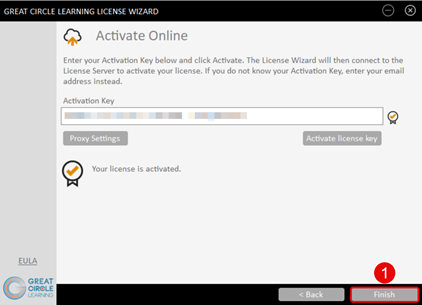
- Click the Finish button
AuthorTec is now activated on this specific computer system. You can always deactivate the software to use it on a different computer.