
📍The Learning Design Tool is not always showing on the Microsoft Ribbon.
You need to launch it for the ribbon to appear.
Follow These Steps to Access the Learning Design Tool
There are 4 ways you can access the Learning Design Tool in Microsoft Word.
Option #1 - The Start Menu
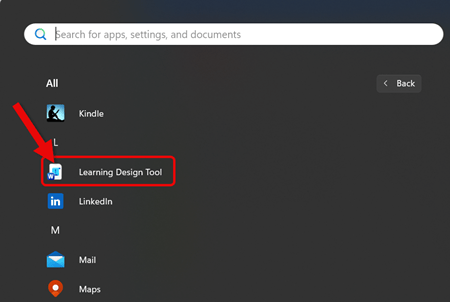
- Click on the Windows Start Menu
- Look in the section for L
- Click on Learning Design Tool
Option #2 - The Search Bar
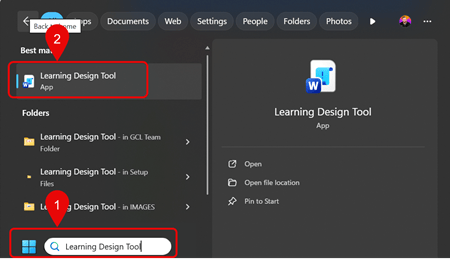
- Use the Windows Search Function
- Type in Learning Design Tool
- Click on Learning Design Tool from the search results
Option #3 - From the New page in Microsoft Word
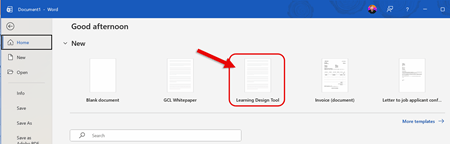
- In Word, click File > New
- Select the Learning Design Tool from your Word templates
- Follow these steps if you do not see the Learning Design Tool in the templates area
Option #4 - Open an Existing Design Document Built with LDT
- Open a Learning Design Tool design document from either:
- File Explorer
- Recent Word files
When in Free Trial mode, this option is disabled.
You must open the Learning Design Tool using methods 1, 2, or 3 and then use the Open button on the LDT ribbon to open any demo design documents you are working on.

- Using any of the steps opens Word and adds the Learning Design Tool tab
Next Steps
Learn More
How to add the Learning Design Tool to your Word templates
- Open File Explorer and Navigate to:
- C: Drive > User > Your Name > AppData > Roaming > Microsoft > Templates
- Copy the file path address as text
- Open Microsoft Word
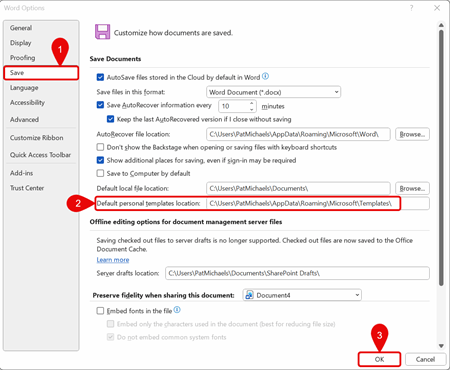
- Click on File > Options > Save
- Locate the placeholder for Default personal templates location
- Paste in the copied file path
- Click OK