
Open File Explorer in Microsoft Windows
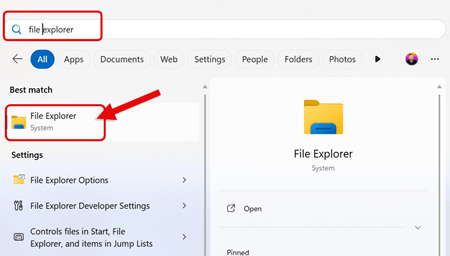
- Search for File Explorer in the Windows Taskbar and Click to Launch
Navigate to: This PC > C: Drive > Users > "YourUserName" > AppData
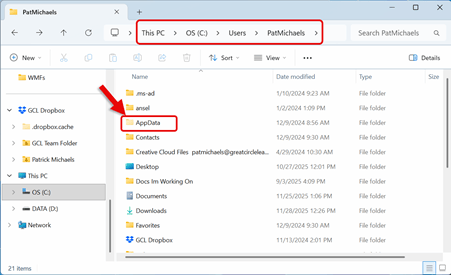
The AppData folder in Windows stores data specific to each user, such as application settings, configuration files, caches, and temporary files.
By default this folder is Hidden by Microsoft Windows
If You Do Not See the AppData Folder
Follow These Steps
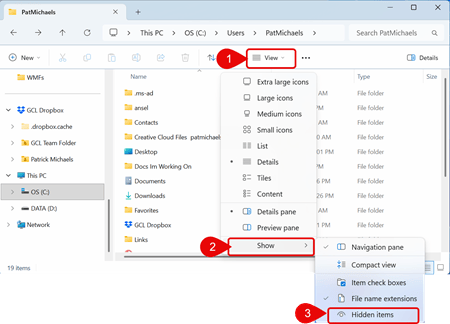
- Within File Explorer, Click View
- Select Show from the Dropdown Menu
- Click on Hidden Items
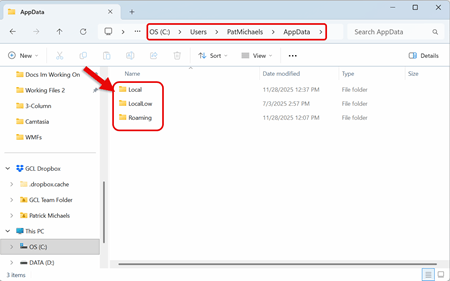
Access to the AppData Folder is Now Available, Including the Folders:
- Local
- LocalLow
- Roaming