
Overview
LeaderGuide Pro creates two types of instructional guidebooks:
- Facilitator Guide - to serve instructors as a study guide and a delivery roadmap with clear, concise and complete information and directions
- Participant Guide - to support learners with key points, instructional exercises and capture space for notes
Both guidebooks follow the same instructional framework
- Modules - which are the topics in your course outline
- made up of Lessons - which are the sub-topics in your outline
- built with icon-driven Content Blocks that parse the instructional content into step-by-step chunks to guide the facilitator
- made up of Lessons - which are the sub-topics in your outline
This framework formats the instruction into manageable chunks, making the training easier to follow and apply
Why Two Guidebooks?
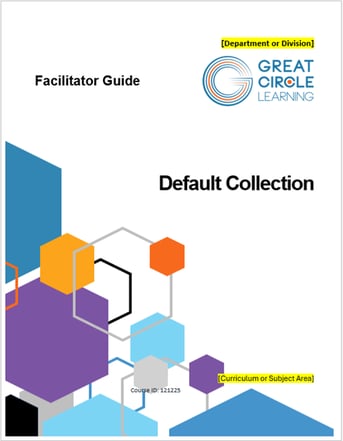
Facilitator GuideThe master resource containing everything required to |
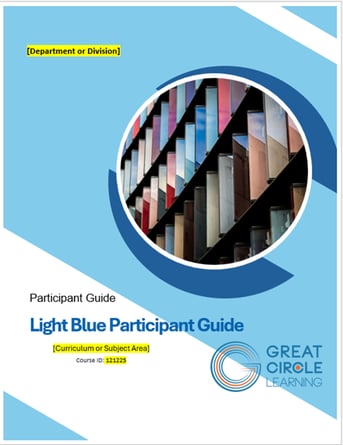
Participant Guide
|
📍TIP: A Participant Guide can be Extracted from a Facilitator Guide
Building a Facilitator Guide first and then Extracting a Participant Guide allows you to automatically:
- Sync content updates from one guidebook to the other
- Insert Participant Guide Page References into the Facilitator Guide
Standard Guidebook Structure
Both guidebook types are built with the same sections and parts
With that said:
- The Facilitator Guide contains a robust Getting Started module to help facilitators prepare for the delivery as well as Module Overview pages to orient facilitators to what they need to do to deliver each Module
- The Participant Guide is meant to include ample space for note taking
| Facilitator Guide | Participant Guide |
|
Section 1 Section 2: Preparation
Section 3: Delivery
Optional Section 4: Appendix
|
Section 1
Section 2: Preparation
Section 3: Delivery
Optional Section 4: Appendix
|
How LeaderGuide Pro Works
⭐Understanding how LeaderGuide Pro operates is your key to success
LeaderGuide Pro Smart Templates and specialized code
LeaderGuide Pro automates the creation of professionally formatted and logically structured facilitator guides and participant guides to:
- to ensure consistency and structural integrity
- save time and money
The LeaderGuide Pro smart templates dynamically automate Microsoft Word
- by providing cognitive prompts to focus a user's work process and
- to populate formatted fields based on user input and included software elements
Here are a few of the many "behind the scenes" moving parts working on your behalf as you use LeaderGuide Pro
- Brand Elements: Logos, cover pages, copyright, headers, footers, icons, style guides
- Customizable Collections: Dedicated aspects of the guidebook templates where users can input custom text and images without affecting the master layout and functionality of the software
- Dynamic Smart Fields: Placeholders that automatically pull data from special styles to populate key areas of the guidebooks (e.g. the Program Name on the Cover page automatically populates in various locations within the document)
- Dialog boxes and Wizards: LeaderGuide Pro regularly shares information about what it is doing, asks questions, and provides guided options to automate the work tasks necessary to build your facilitator and participant guides
- Logic-based Rules: The logic used to determine which sections and elements are included - such as:
- whether a facilitator guide or a participant is created
- the overall look and feel - by virtue of the Collection selected
- whether PowerPoint is included - and where slides are placed on the lesson pages
What this means for you as a user
Even though LeaderGuide Pro runs within Word - ALWAYS use LeaderGuide Pro first
- Because LeaderGuide Pro operates based on logic and data integration that is reliant on the code it overlays on Word
No matter your level of expertise with Microsoft Word, LeaderGuide Pro knows Word better - at least when it comes to facilitator and participant guides
- The software automates advanced functions of Word and adds additional functionality not otherwise available
- The smart templates and Collections automatically build professional training materials - freeing users from worrying about formatting and providing cognitive prompts to guide workflow
You must use the LeaderGuide Pro functions to attain its benefits
- Always have the LeaderGuide Pro ribbon showing as you work in a Guidebook
Rather than falling back on Word habits, please:
- Always start new facilitator guides and participant guides from the New button on the LeaderGuide Pro ribbon
- Use the page layouts in the facilitator and participant guides as provided
- Use the styles and formatting as provided
- Use the icons and graphic instructional cues as provided
- Follow the document structure and page layout conventions
- Always insert Content Blocks from the LeaderGuide Pro ribbon
- Work with Word's formatting marks turned on
- Only share copies of your LeaderGuide Pro documents with non-users
- Make sure all document contributors and editors understand the software
- Always keep master copies of your LeaderGuide Pro documents
📍TIP: Use the LeaderGuide Pro Customization wizards ...
- AFTER becoming familiar with what LeaderGuide Pro does
We recommend that you start by using LeaderGuide Pro as provided
- because this will help you get to know and understand all the ways the software helps you work more productively
With that said, LeaderGuide Pro is highly customizable and
- using the LeaderGuide Pro Customization wizards ensures that your changes will not impact the software's functionality
When to use Word vs. LeaderGuide Pro
Because LeaderGuide Pro runs within Word, it is important to know when to use LeaderGuide Pro and when to use Word.
Use Word to:
- Access the LeaderGuide Pro ribbon and use the software
- Save the documents you create with LeaderGuide Pro
- Print or view the guidebooks in Print Preview mode
- Type in or delete text within a Content Block
- Copy and paste content copied from within a guidebook
Use LeaderGuide Pro to:
- Start a new guidebook - use the New button
- Open an existing guidebook - use the Open button
- Add Modules and Lessons - use the Module and Lesson buttons
- Reorder, Delete or Archive Modules and Lessons - use Librarian
- Paste content copied from other sources - use the Paste Special button
- Add a Content Block - use the Content Block buttons
- Delete/remove a Content Block - use the Delete Table Row button
- Add bullets or numbered lists
- Use the Bullet>Promote>Demote buttons
- And the Number>Promote>Demote>Restart List buttons
- Import PowerPoint slides and notes
- Import images and chunks of content from other documents
- Resize slides and other images
AVOID using these Word functions
- Undo and Redo
- Because most LeaderGuide Pro tasks involve multiple steps (that happen so fast that you don't see them) while Undo and Redo only address the very last action, which is usually not enough
- Font, Paragraph and Styles
- To make these types of changes, use the LeaderGuide Pro Customization wizards to create a Custom Collection
- By creating a Custom Collection you:
- only have to make the changes ONCE and then simply use your custom Collection
- and this ensures that the LeaderGuide Pro functionality remains intact
Learn More
Facilitator Guide Walk-Through
Participant Guide Walk-Through
About Content Parts
About Content Blocks
About PowerPoint and LeaderGuide Pro