
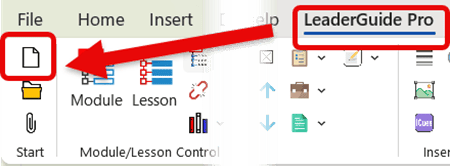
You will see the Start a New Guidebook wizard after clicking the NEW button on the LeaderGuide Pro ribbon
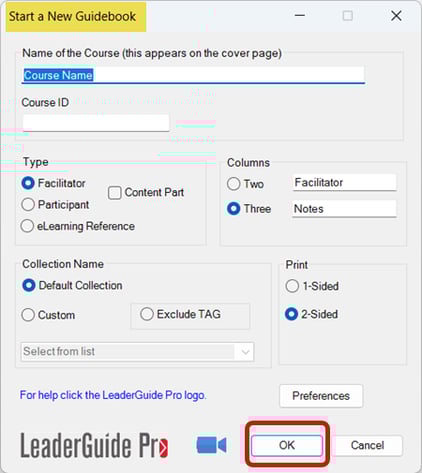
You will use this wizard to establish the parameters of your new guidebook
📍TIP: When in doubt - use the default settings
Because LeaderGuide Pro makes it easy to extract new guidebooks from existing ones, you will always be able to make changes to the initial settings you choose here
Let's walk through the fields of this wizard
-
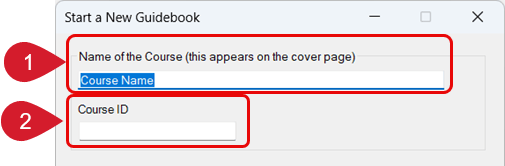
Name: Type in the name of your course
-
The course name you add here will populate as your file name when you are initially prompted to save. You can change the file name as needed
-
This name will also appear on the cover page, in the About This Guide section, and in the even-numbered page footers of your new guidebook
-
Once you are in your new guidebook, go to the cover page to edit the name if needed. Your new name will automatically update everywhere else
-
- Course ID: Type in an optional course ID.
- The ID can be used to search for your guidebook in Windows File Explorer
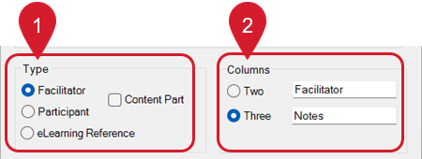
- Type: Select Facilitator or Participant
- Optionally you can also select Content Part, which builds just a Module and Lesson chunk
- eLearning Reference will create a guidebook to align with an Articulate course
- Columns: We recommend using 3-column for Facilitator Guides and 2-column for Participant Guides
- You will have the option to adjust the number of columns for specific Content Blocks as you start working in your guidebook
📍TIP: Build your Facilitator Guide first
Because your facilitator guide will be the most comprehensive guidebook you create, it will be easy to use the LeaderGuide Pro Extract function to create a Participant Guide from your Facilitator Guide
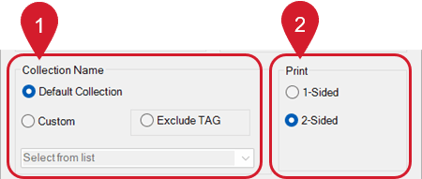
- Collection Name: Select the Collection to use to apply the cover page design, fonts, styles, and icons that will be used to establish the look & feel of your new guidebook
- The Default Collection is set as your preferred Collection when you first start using LeaderGuide Pro
- Click Custom to see the list of included Collections
- Print: We recommend leaving this setting as 2-Sided
- This way, if you print your Guidebook, it will be set up properly - like a book.
📍TIP: We recommend starting a new guidebook with each Collection
Use the Collection Name as the Course Name
This allows you to compare the included Collections and then choose the one(s) you prefer as you create new guidebooks
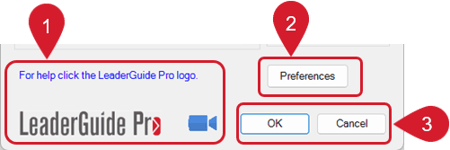
- For in the moment written help click the LeaderGuide Pro logo, or click the blue camera to be taken to a video
- Preferences: Click this to be taken to the wizard that allows you to set and control global settings that will apply to all new guidebooks you create
- For example, you can use Preferences to import your Logo to appear automatically on your cover pages, set your Copyright to insert automatically, and set your Preferred Collection
- Click OK to initiate the start of the build out of your new guidebook
- There are three more steps you must move through after clicking OK
- Save your new guidebook
- Use the Guidebook Design Template to add your course outline
- Optionally import PowerPoint
- There are three more steps you must move through after clicking OK
Hand off mouse after you click OK
Follow the prompts to complete the build out of your new guidebook
Learn About
- Collections
- Content Parts
- Preferences
Next Steps
- Add a Course Outline with the Guidebook Design Template
- Import PowerPoint
- Get to Know your New Guidebook